Style Players
Listen to styles with their real sounds. The KORG Style Player plays KORG styles with their samplers (and on your KORG keyboard over MIDI); the universal Style Player plays KORG, PA5X, Yamaha, Medeli and Ketron styles and lets you change samplers, volumes, octaves, chord rules and notes.
- Opening the KORG Style Player and using fills, mixer, loop and MIDI out
- Opening the universal Style Player from Resources or an AKX set
- Sections, tracks, chords and Chord Variations
- Editing samplers, volume, octave, chord rules and notes
- Saving an edited style
Two players — which one is which#
- For styles inside your KORG SET (SetManager).
- Plays with the style’s real KORG samplers and drum kits.
- Fills and Break on the next bar, mixer with Solo / Mute, loop.
- MIDI out — play the style on a KORG keyboard.
- For style files (Resources, Community, Style Database) and AKX styles.
- KORG .STY, PA5X .stg, Yamaha, Medeli and Ketron.
- Choose chord and Chord Variation, play sections live.
- Edit: samplers, volume, octave, chord rules, notes — and save.
The KORG Style Player#
- 1Open it
In SetManager, right-click a style → Play ▸ → choose the section (Intro, Variation, Fill, Break, Ending) and its number. You can also press Play in Style Properties.
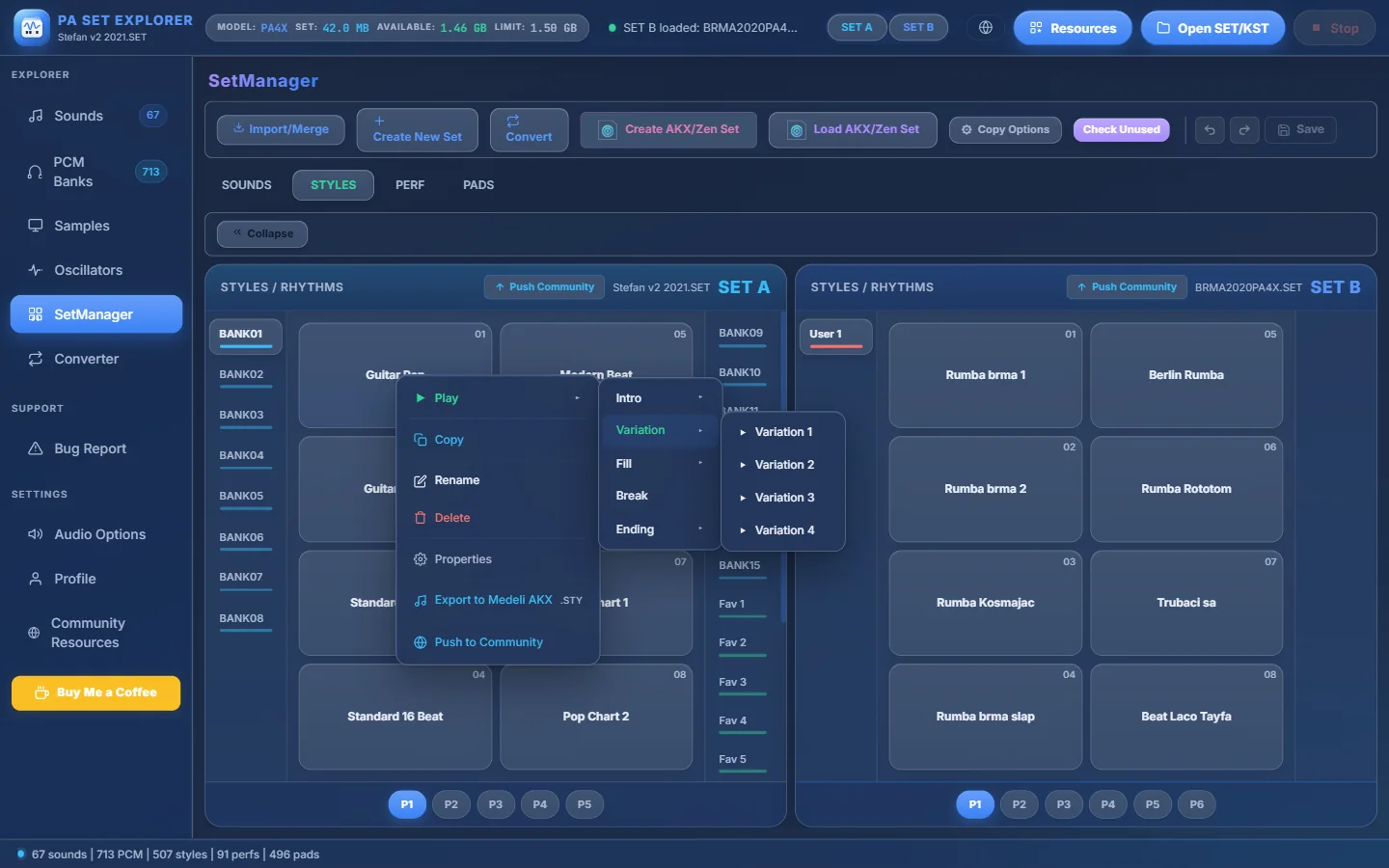
- 1Play ▸
- 2The section types…
- 3…Variation…
- 4…number 1.
The first time, the program prepares the style’s samples (“Loading style…”); then it plays by itself. - 2Play
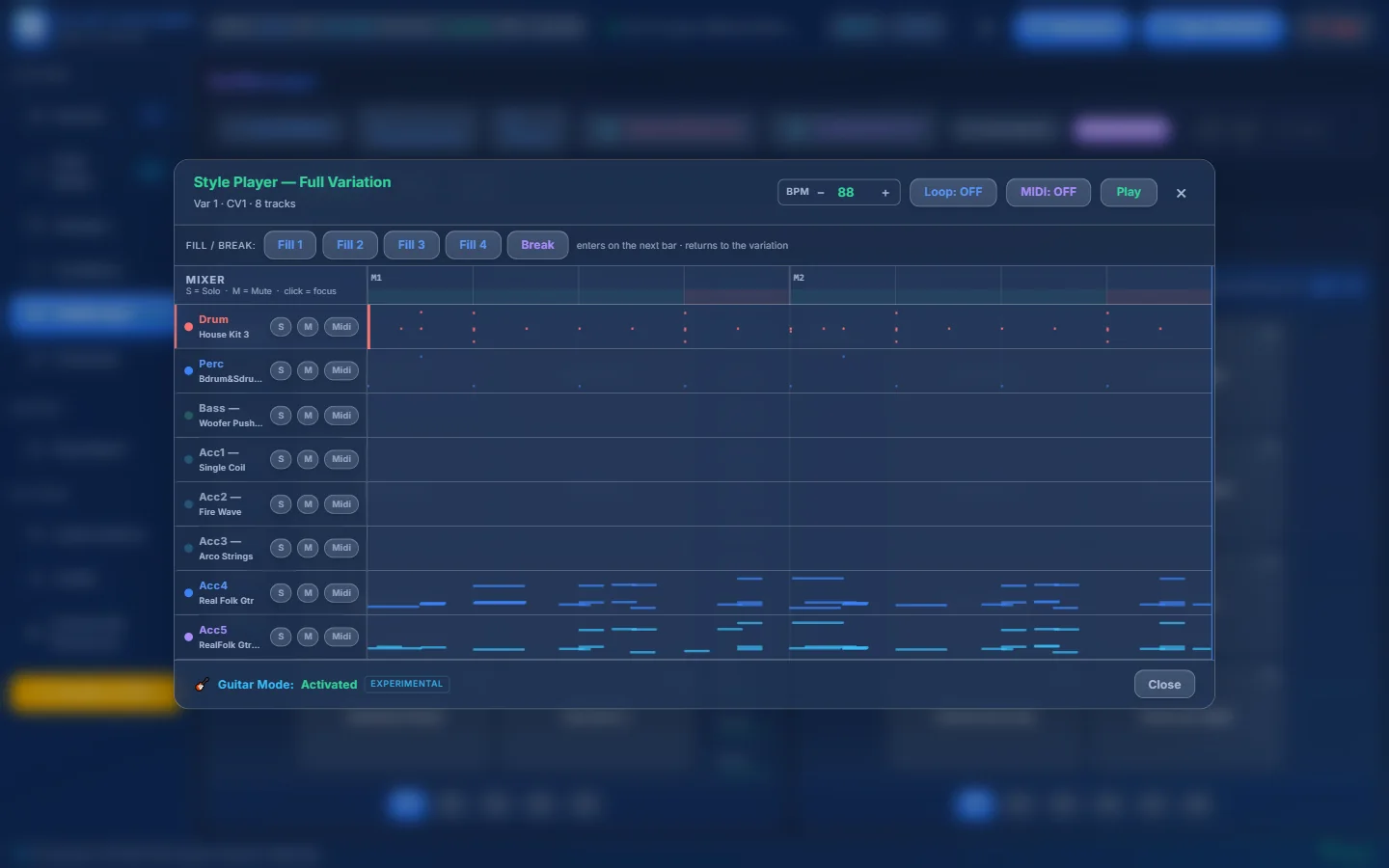
- 1Style Player — Full Variation, element, CV and number of tracks.
- 2BPM — tempo (− / + or type it).
- 3Loop: ON / OFF.
- 4MIDI: ON / OFF — send the style to a MIDI port.
- 5Play / Stop.
- 6Fill 1–4 and Break — click while playing: it enters on the next bar and returns to the variation.
- 7How fills work.
- 8A mixer row: track and its sampler / drum kit.
- 9S solo · M mute · Midi = play this track with a GM sound.
- 10The notes of every track, with a moving playhead.
- 11Shown when a Guitar Mode track is playing (experimental).
KORG Style Player — “Guitar Pop”, Var 1.
- Click a fill while the player is stopped to arm it: it plays first when you press Play.
- Solo and Mute work live, without restarting.
- The player plays one section at a time — to hear another, choose it from the Play ▸ menu.
The universal Style Player#
Open it by double-clicking a style in Resources (or right-click → ▶ Open in the Style Player), double-clicking a Community download, a Style Database style, or a style in a Medeli AKX Styles pack.
Step 1 — Sections#
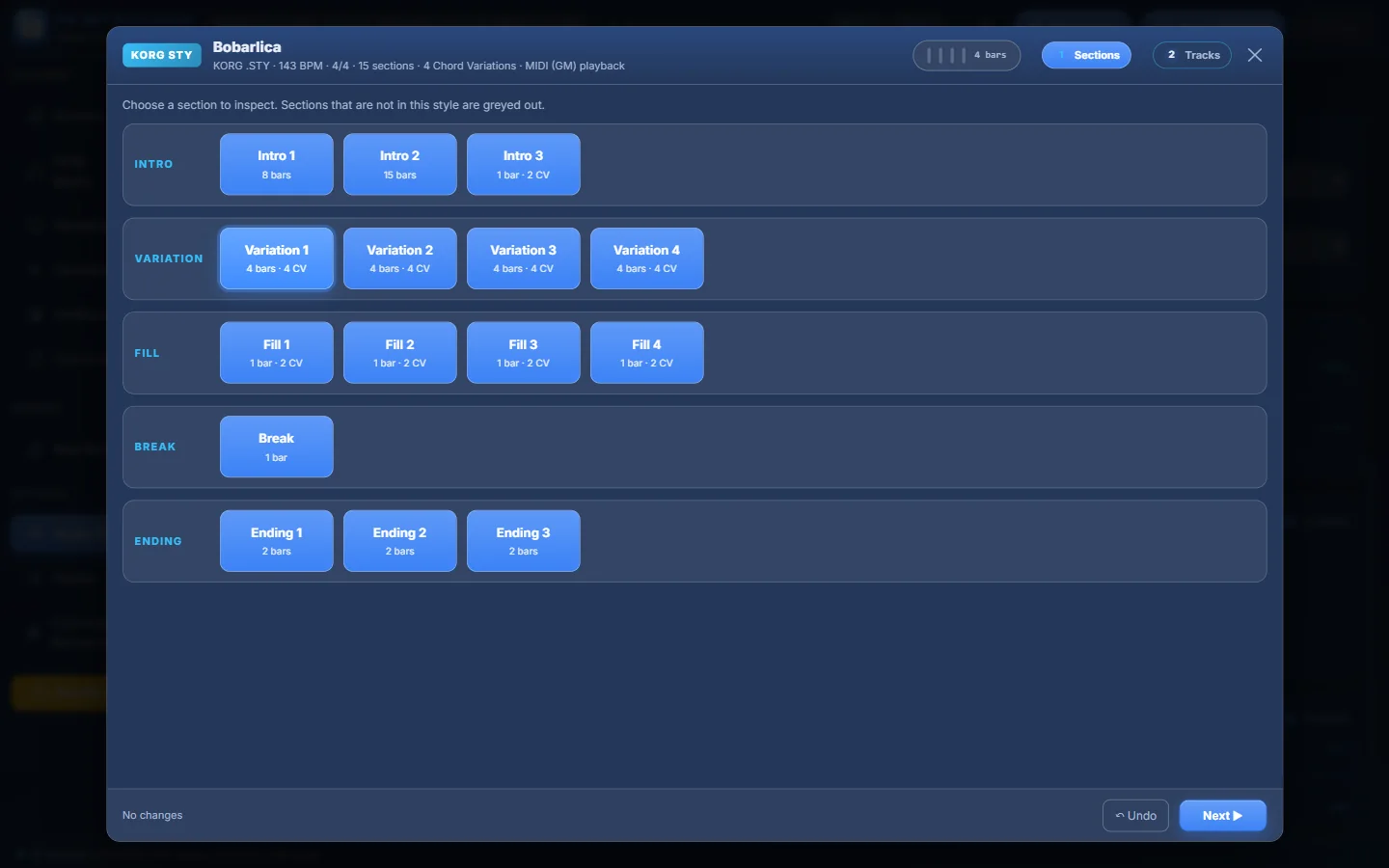
- 1The format: KORG STY, PA5X STG, YAMAHA, KETRON or STYLE (Medeli).
- 2Tempo, time signature, number of sections and Chord Variations.
- 3Bar counter (blinks in tempo while playing).
- 4The steps: 1 Sections, 2 Tracks (and 3 Quick Settings for Medeli styles).
- 5The selected section.
- 6All sections grouped as Intro, Variation, Fill, Break and Ending. Missing ones are greyed out.
- 7Next ▶ — go to the tracks (or double-click a section).
Step 2 — Tracks#
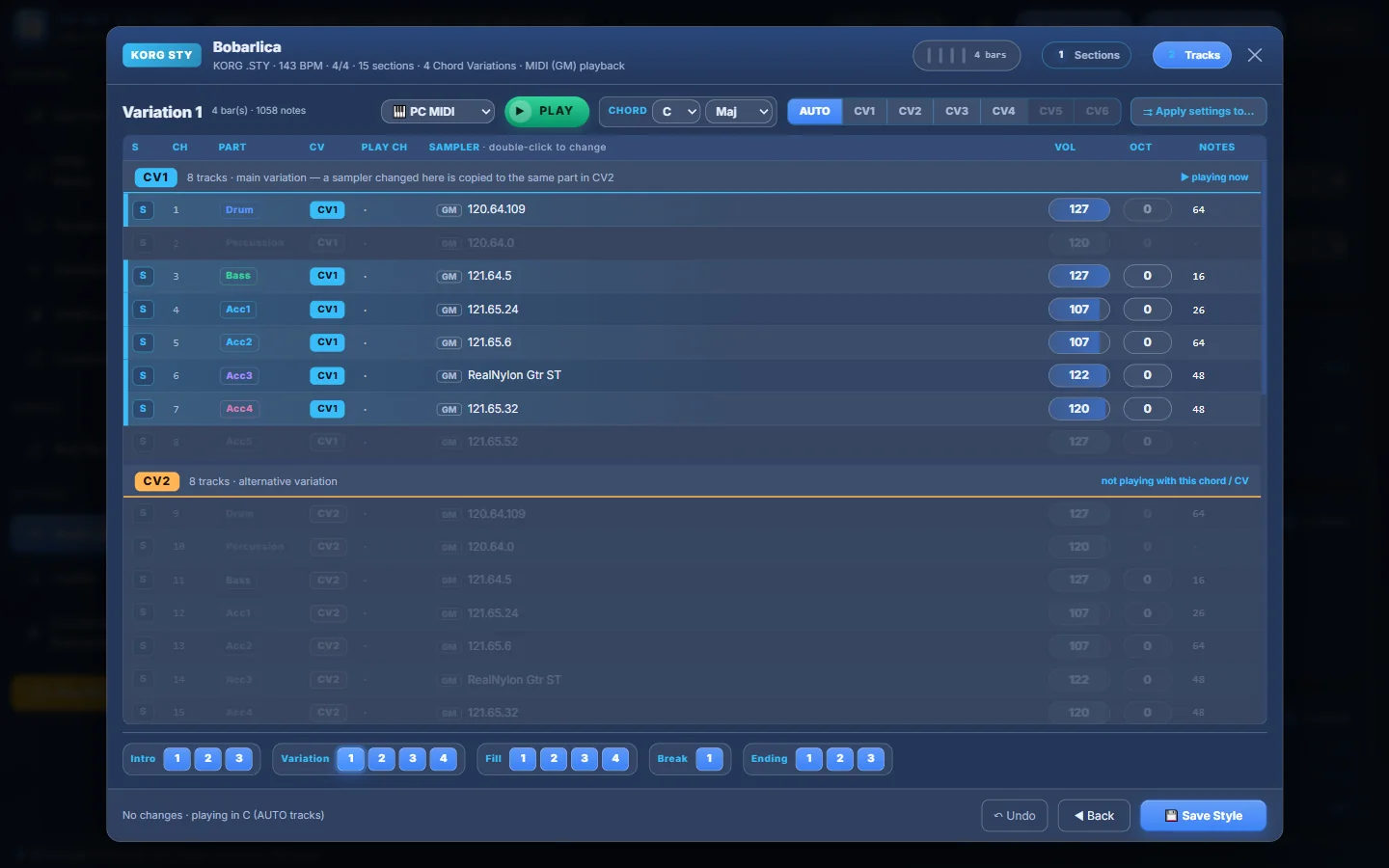
- 1Output: 🎹 PC MIDI (your computer’s MIDI synth) or 🔊 Internal GS / AKX samples.
- 2▶ PLAY / ■ STOP (Space). Choosing another section while playing switches on the next bar.
- 3CHORD — root (C…B) and type (Maj, m, 7, m7, M7, 6, m6, sus4, 7sus4, dim, dim7, aug, m7b5, mM7, add9, 1+5, 1+8).
- 4AUTO or a fixed Chord Variation (KORG CV1–CV6, Yamaha Main/Minor/7th, Ketron MAJ/MIN/SEV, Medeli CV1–3).
- 5⇉ Apply settings to… — copy this section’s samplers / volume / octave to other sections.
- 6Tracks grouped by Chord Variation; “playing now” shows which group you hear.
- 7S — solo a track (preview only).
- 8The part (Drum, Bass, Acc1…).
- 9SAMPLER — double-click to change it.
- 10VOL — click for a 0–127 slider.
- 11OCT — −3…+3 (not for drums).
- 12How many notes the track has.
- 13Another Chord Variation (not playing with the current chord).
- 14Section bar — jump to any section.
- 15💾 Save Style.
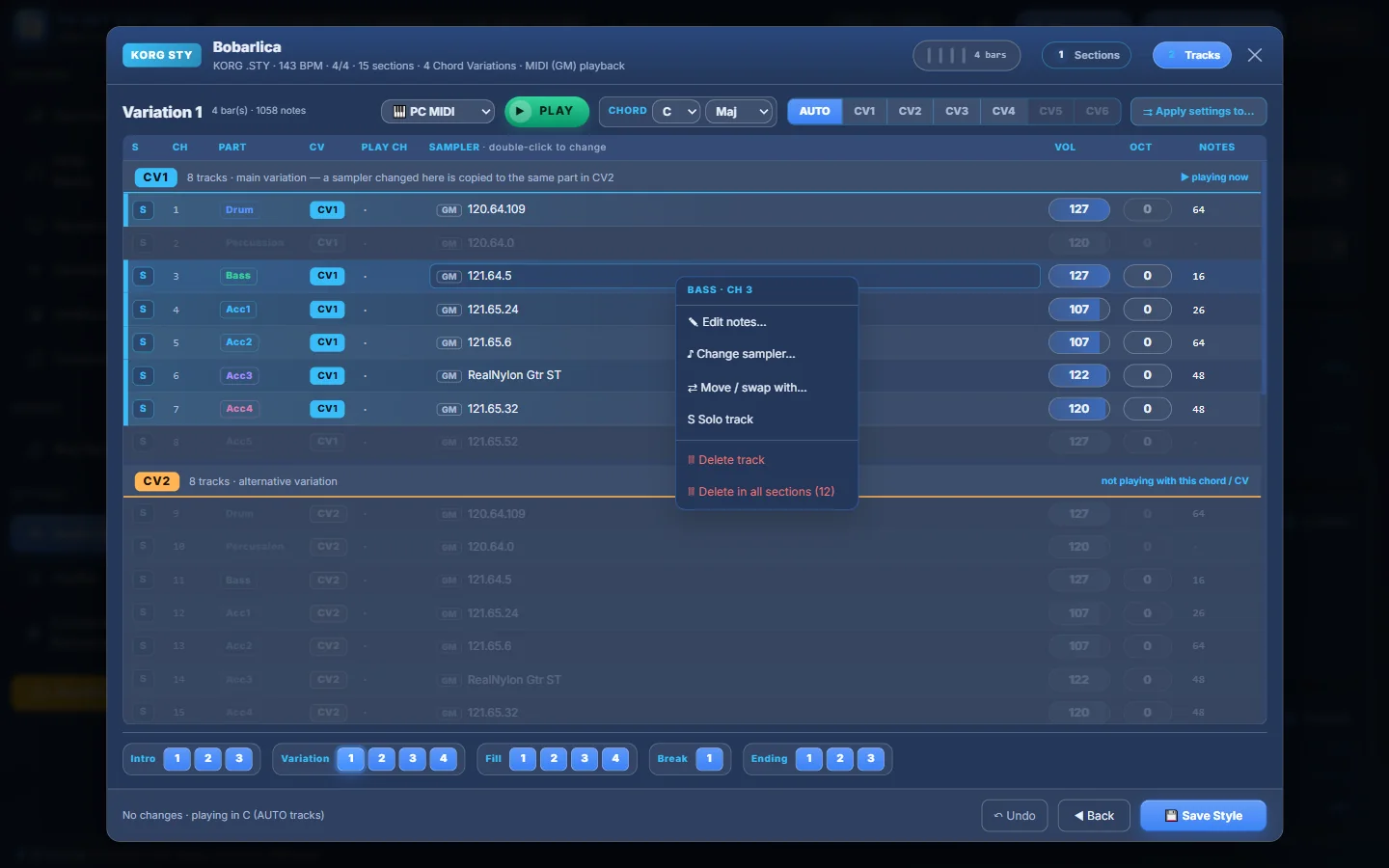
- 1Right-click a track…
- 2…for Edit notes, Change sampler, Move / swap with, Chord rule (when the format allows), Solo, Delete track and Delete in all sections.
Chord rules — how a track follows your chords#
Right-click a track → 🎼 Chord rule…. Available for Yamaha styles (with chord tables) and Medeli styles. A Yamaha example:
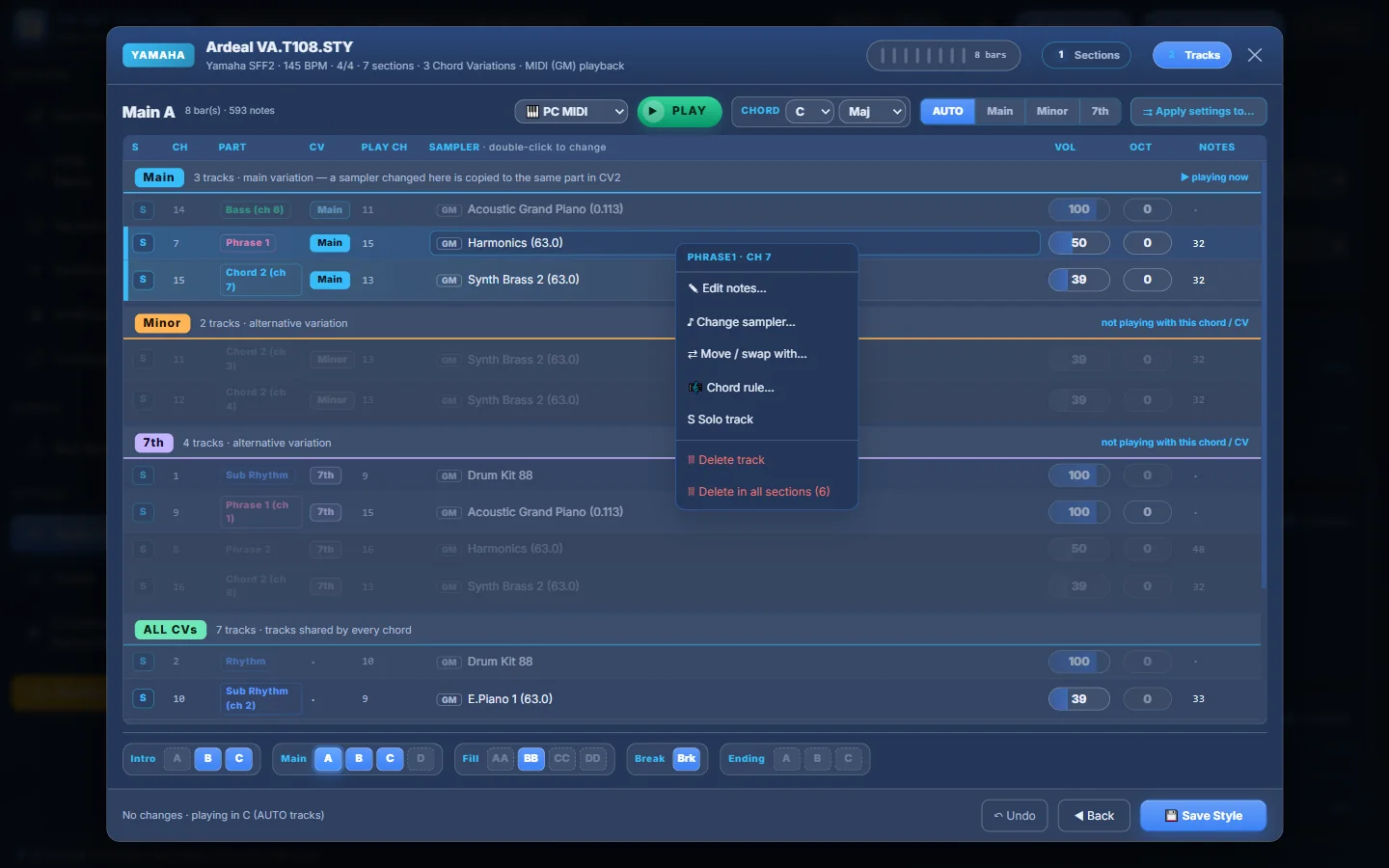
- 1Yamaha CVs: Main, Minor, 7th.
- 2Tracks grouped by CV…
- 3…and ALL CVs for tracks shared by every chord.
- 4Right-click a track…
- 5…→ 🎼 Chord rule…
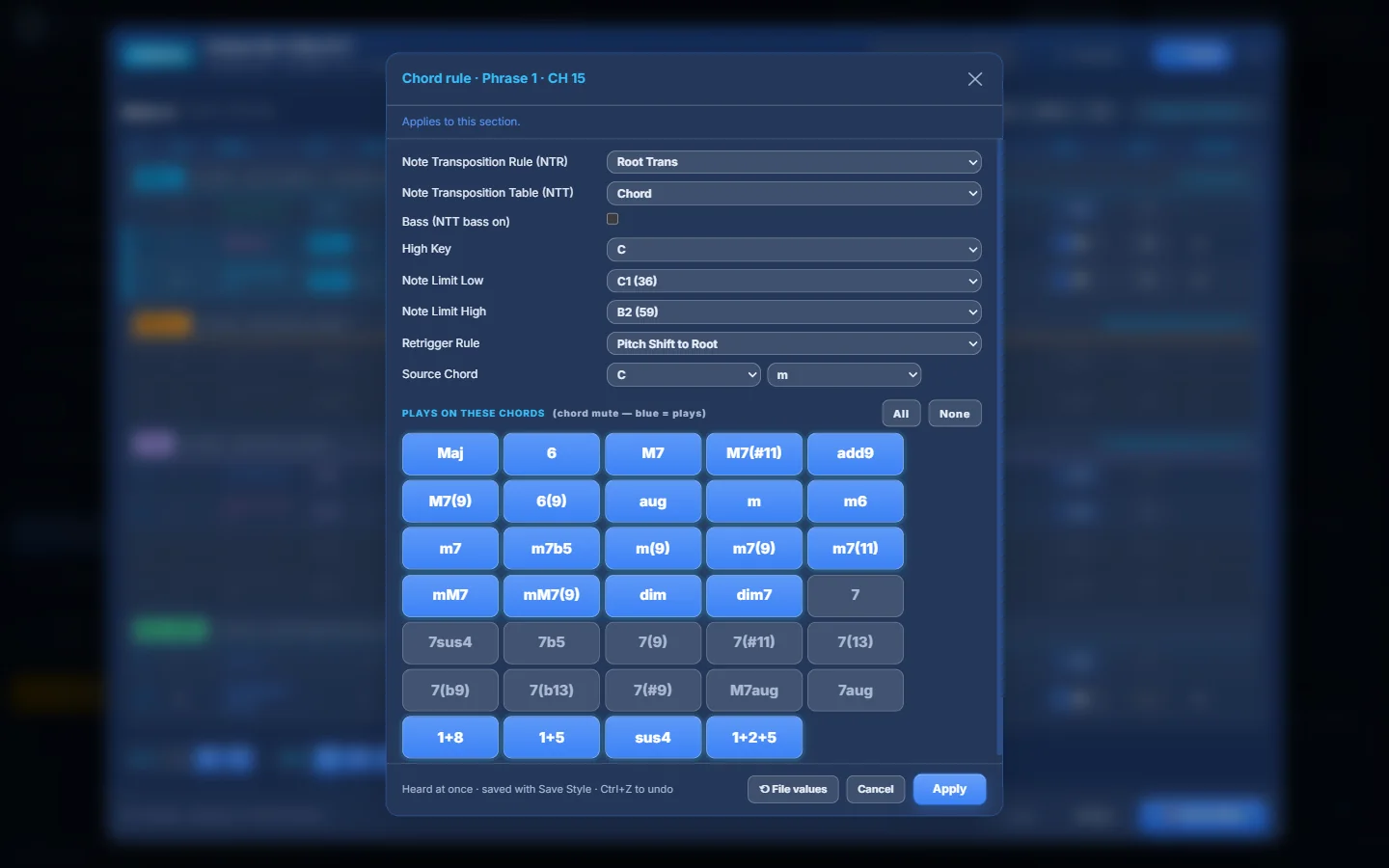
- 1Where the change applies (this section, or all sections sharing the same chord table).
- 2NTR — Root Trans, Root Fixed or Guitar.
- 3NTT — Bypass, Melody, Chord, Melodic / Harmonic / Natural Minor (5th), Dorian (5th). With Guitar NTR: All-Purpose, Stroke, Arpeggio.
- 4Bass (NTT bass on).
- 5High Key — where notes fold down an octave.
- 6Note Limit Low / High.
- 7Retrigger Rule — Stop, Pitch Shift, Pitch Shift to Root, Retrigger, Retrigger to Root, Note Generator.
- 8Source Chord — the chord the phrase was recorded in.
- 9Plays on these chords — blue = the track plays on that chord type, grey = muted.
- 10All / None.
- 11Heard at once · saved with Save Style · Ctrl+Z to undo.
- 12⟲ File values, Cancel or Apply.
Edit notes of a track#
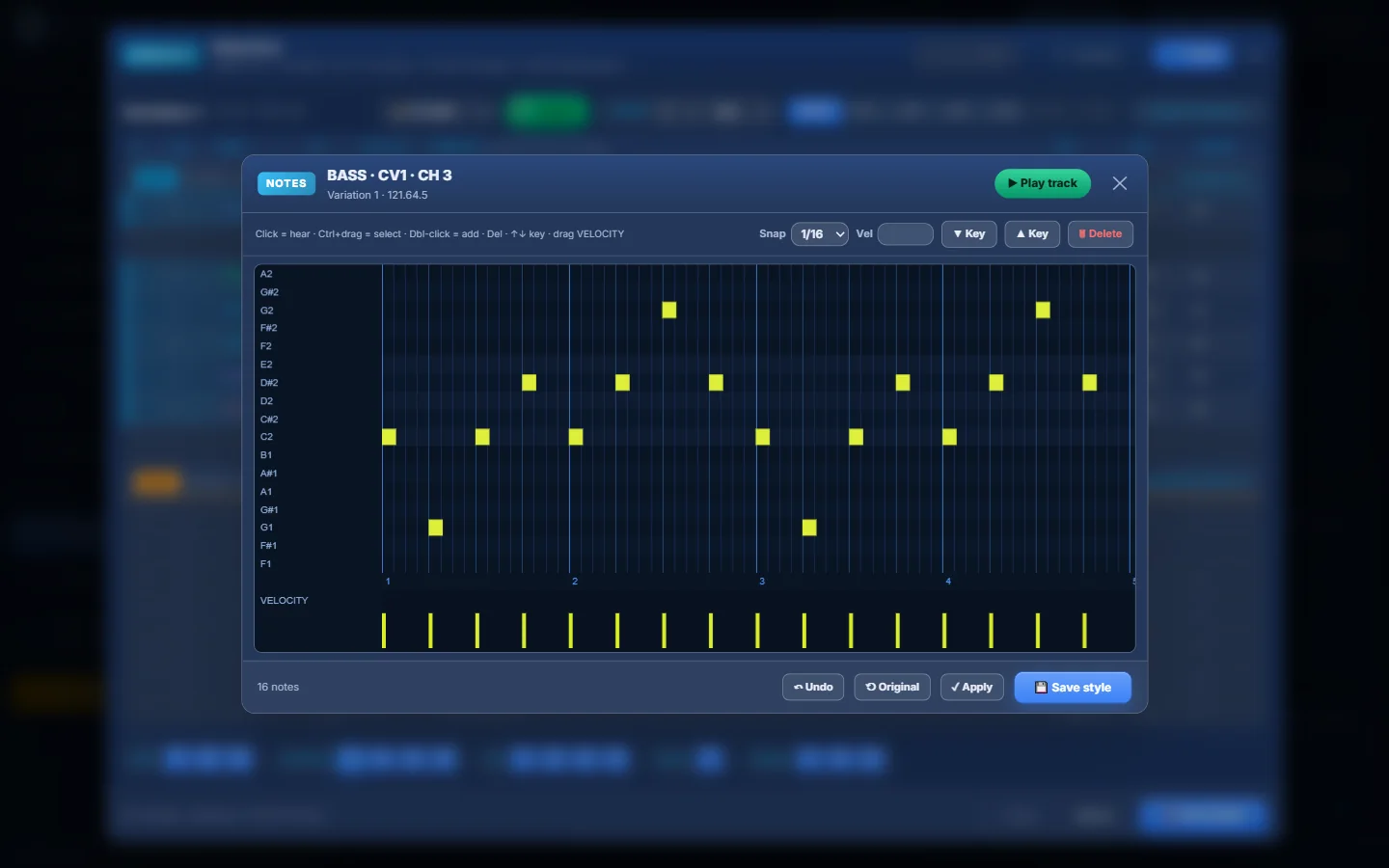
- 1The track, CV, channel, section and sound.
- 2▶ Play track (Space).
- 3Click = hear · Ctrl+drag = select · Double-click = add · Del · ↑↓ move · drag velocity.
- 4Snap (1/4 … 1/32), Vel, ▼ Key / ▲ Key and 🗑 Delete.
- 5The notes on a piano roll.
- 6Velocity — drag the bars.
- 7↶ Undo, ⟲ Original, ✓ Apply and 💾 Save style.
Apply settings to other sections#
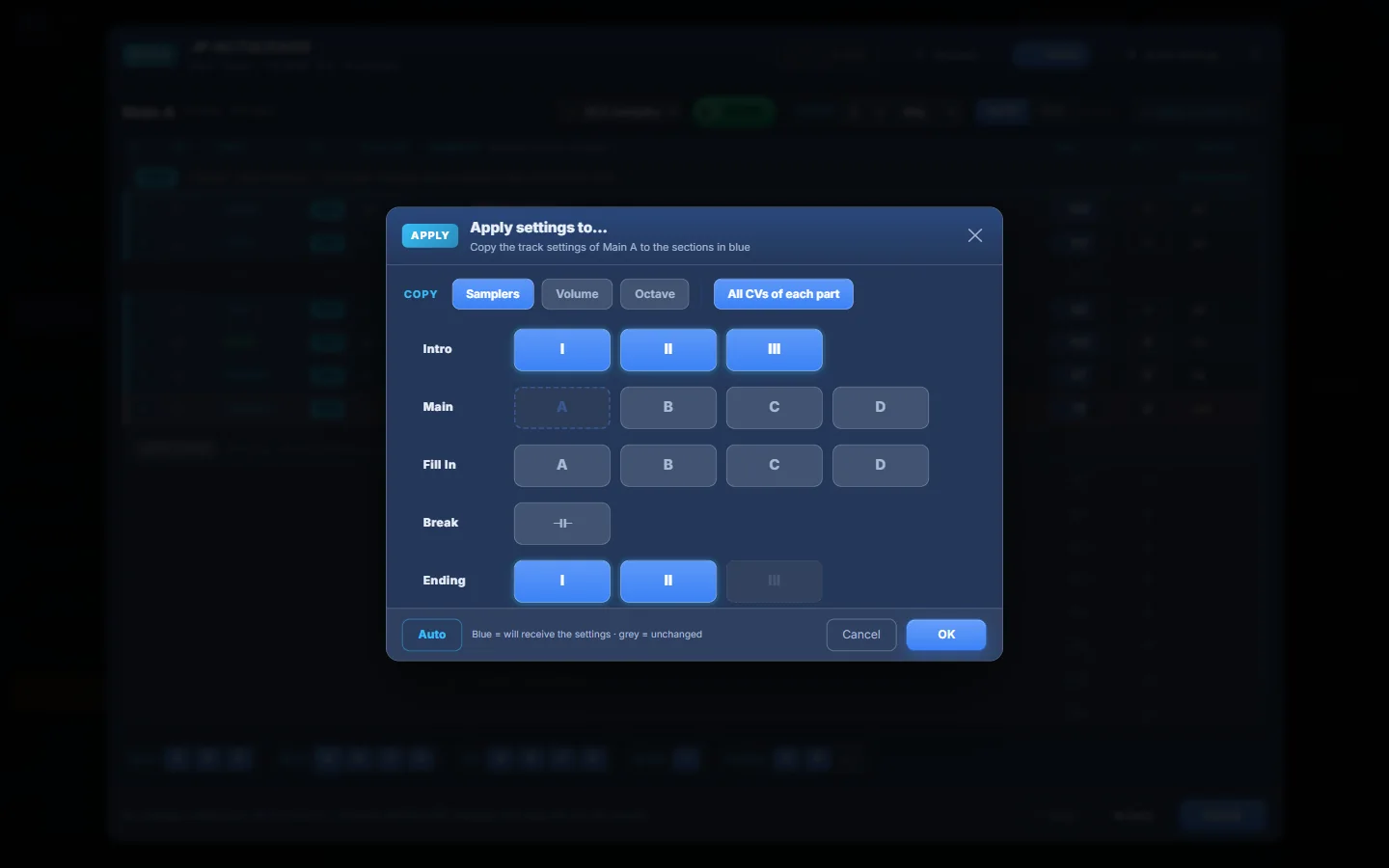
- 1What to copy: Samplers, Volume, Octave, and whether to include All CVs of each part.
- 2The section you are copying from (Main A).
- 3Blue sections receive the settings…
- 4…grey ones stay as they are. Click to toggle.
- 5Auto — selects the Intros and Endings.
- 6OK.
Saving an edited style#
| Style | 💾 Save Style does… |
|---|---|
| A style file (KORG .STY, PA5X .stg, Yamaha, Ketron) | Saves the file in place, in the same format, and keeps a backup copy. |
| A style in a Medeli AKX set | Rebuilds the style in the AKX set (with a backup). |
| Other formats | The button is greyed: “Saving this format is not available yet”. |
- The status line counts your unsaved changes; Ctrl+Z undoes them one by one.
- Closing with ✕ asks “Discard N unsaved change(s)?”.
- A section must keep at least one track — the last track of a section or of a CV cannot be deleted.