Open a SET & Resources
The two buttons at the top that start everything: Open SET/KST to load a KORG SET or PA5X KST, and Resources — your personal library of SETs, KSTs, AKX sets, styles and Community downloads.
- How to open a KORG .SET or PA5X .KST folder (three ways)
- What happens while a SET loads
- How to use the Resources library: Favorites, All, Community, Browse
- How to open a second SET or a Medeli AKX set next to the first (Import/Merge)
Open SET/KST — load your SET#
Everything starts by opening a SET. In PA SET Explorer you always open the folder of the SET (the folder whose name ends in .SET or .KST), not a single file inside it.
- 1Copy the SET from your USB stick to the PC
On your keyboard, save your SET to a USB stick. Copy the whole folder — for example
MySET.SET(PA300 – PA4X) orMySET.KST(PA5X) — to your computer, e.g. to the Desktop.Always keep an untouched copy of the original SET somewhere safe. It costs nothing and saves you from any surprise. - 2Click Open SET/KST
Press Open SET/KST at the top right. A folder window opens.
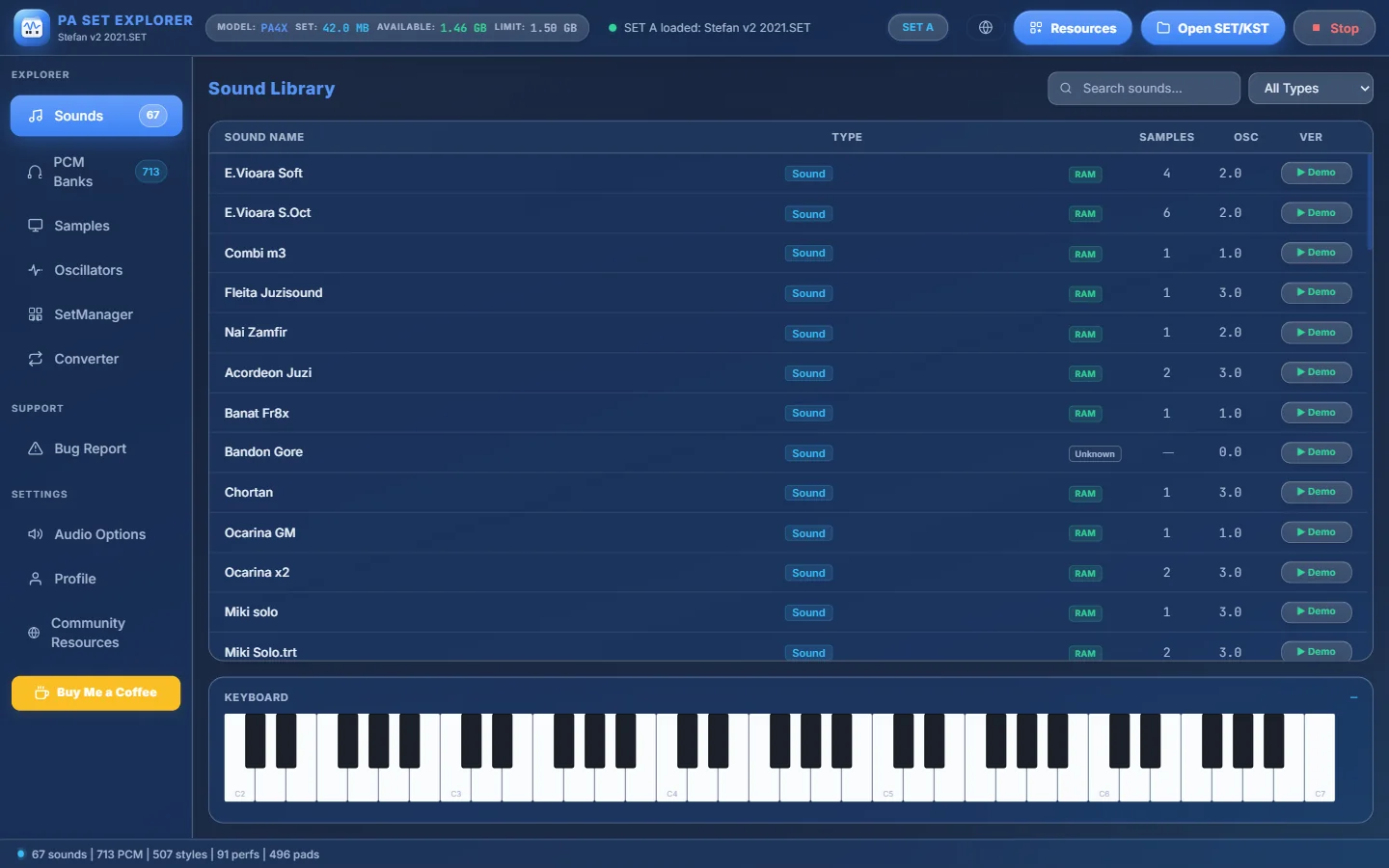
- 1Open SET/KST — click it to choose a SET folder.
The Open SET/KST button in the header. - 3Select the SET folder
Go to the folder that ends in
.SETor.KST, click it once, and confirm. Do not open it — just select it. - 4Wait for the loading window
A Loading SET window shows the progress, the file being read and a log. The first step is “Preparing the working copy”: the program copies your SET to a safe working area so that nothing you do touches the original until you press Save.
- 5Choose the keyboard model
Pick the keyboard the SET is for (see Getting started). A PA5X KST is recognised by itself and skips this step.
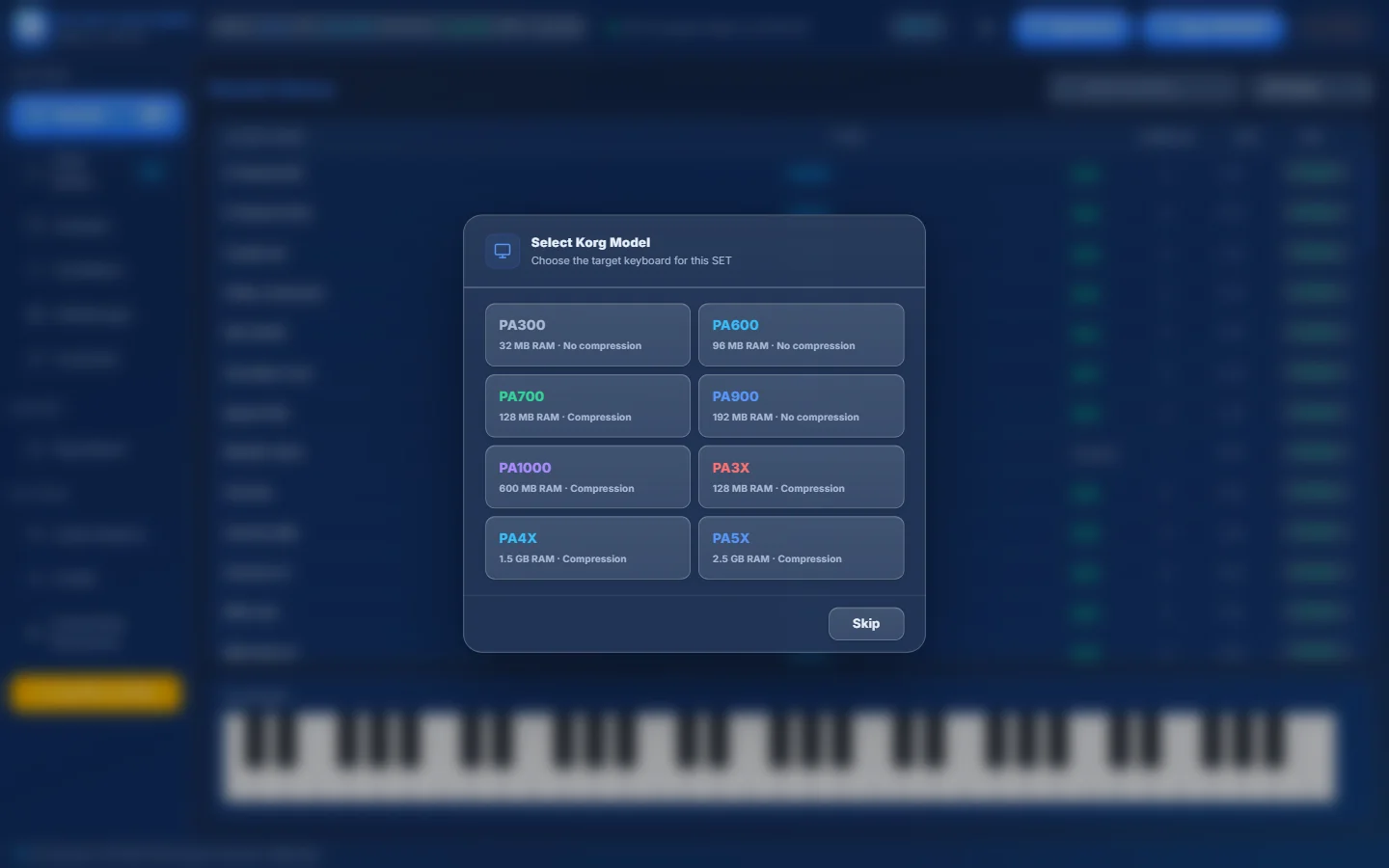
- 1All supported models with their sample memory.
- 2Click your keyboard.
- 3Or Skip.
Three ways to open a SET#
| Way | How |
|---|---|
| Button | Open SET/KST → select the .SET / .KST folder. |
| Drag & drop | Drag the SET folder from Windows Explorer and drop it anywhere on the program window. The window shows “Drop a KORG .SET / .KST folder to open it”. If a SET is already open, you are asked “Replace loaded SET?”. |
| Resources | Double-click the SET in Resources → All or Favorites. |
- A SET folder normally contains sub-folders such as
SOUND,STYLE,PCM,PAD,PERFORM,GLOBALandMULTISMP. If you see them, you are one level too deep — go back and select their parent folder. - Dropping a single style file on the window does not open it: drop styles into Resources instead (the program reminds you with a message).
- Dropping a Medeli AKX/Zen folder on the window opens it in SetManager as an AKX set.
Resources — your library#
Resources opens your personal library: every SET, KST, AKX set and style you have opened or added, in one place. Only the location of each item is saved — nothing is copied or moved.
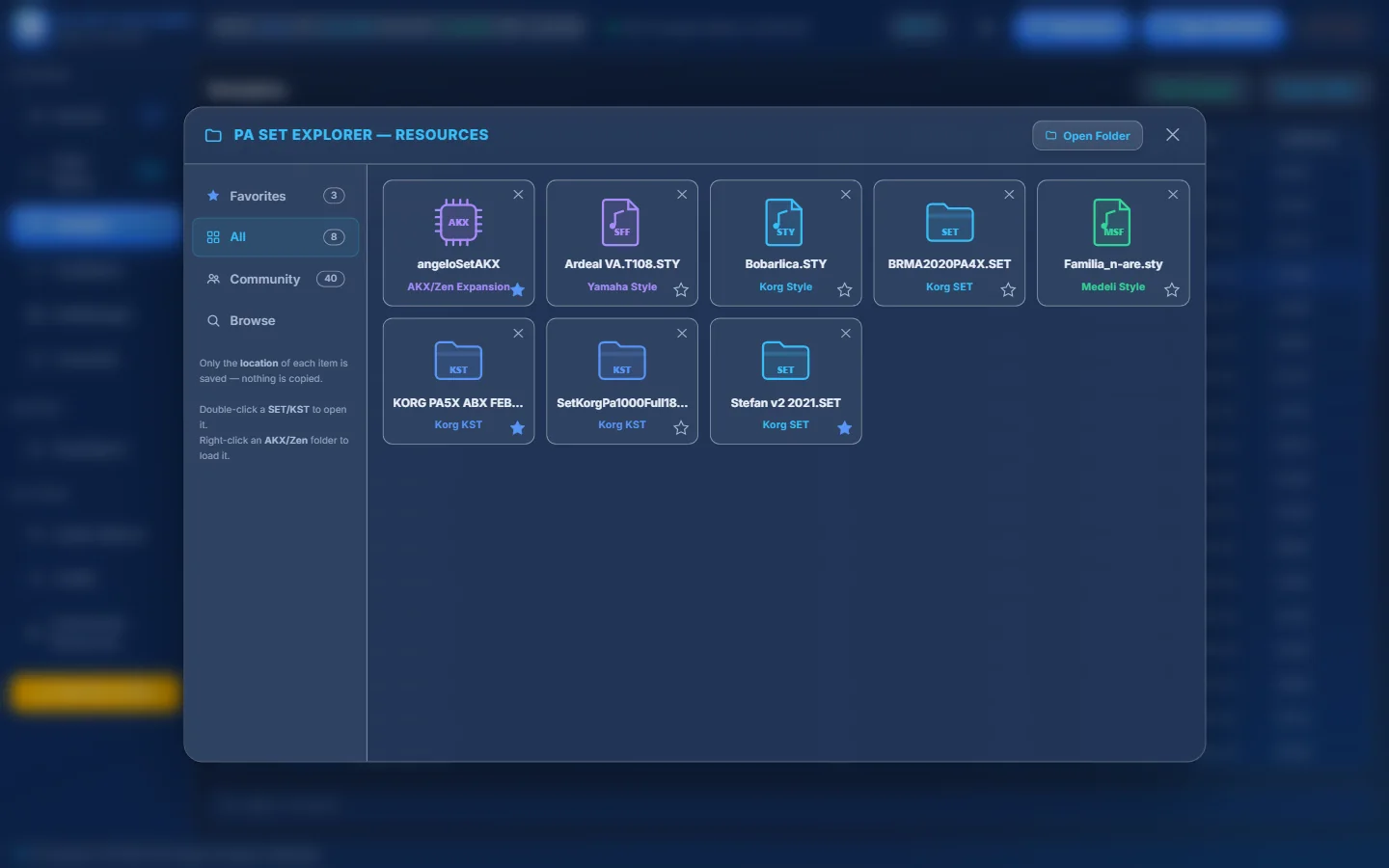
- 1Favorites, All, Community and Browse — with how many items each one has.
- 2Every item is a card with its type (SET, KST, STY, SFF, MSF, STG, AKX) and its name.
- 3The full type: Korg SET, Korg KST, Korg Style, Yamaha Style, Medeli Style, PA5X Style, Ketron Style or AKX/Zen Expansion.
- 4Star — add to / remove from Favorites.
- 5✕ — remove from the library. The files on disk are not touched.
- 6Reminder: double-click a SET/KST to open it, right-click an AKX/Zen folder to load it.
- 7Open Folder — opens the Resources folder (your Community downloads) in Windows.
What a double-click does#
| Item | Double-click | Right-click |
|---|---|---|
| KORG SET / KST | Opens it as SET A (you are asked first; the open SET is closed). | — |
| Any style (KORG, PA5X, Yamaha, Medeli, Ketron) | Opens it in the Style Player. | ▶ Open in the Style Player · Open in SetManager (MIDI) for KORG .STY / .stg |
| AKX/Zen set | Loads it like Load AKX/Zen Set. | Load AKX/Zen Set |
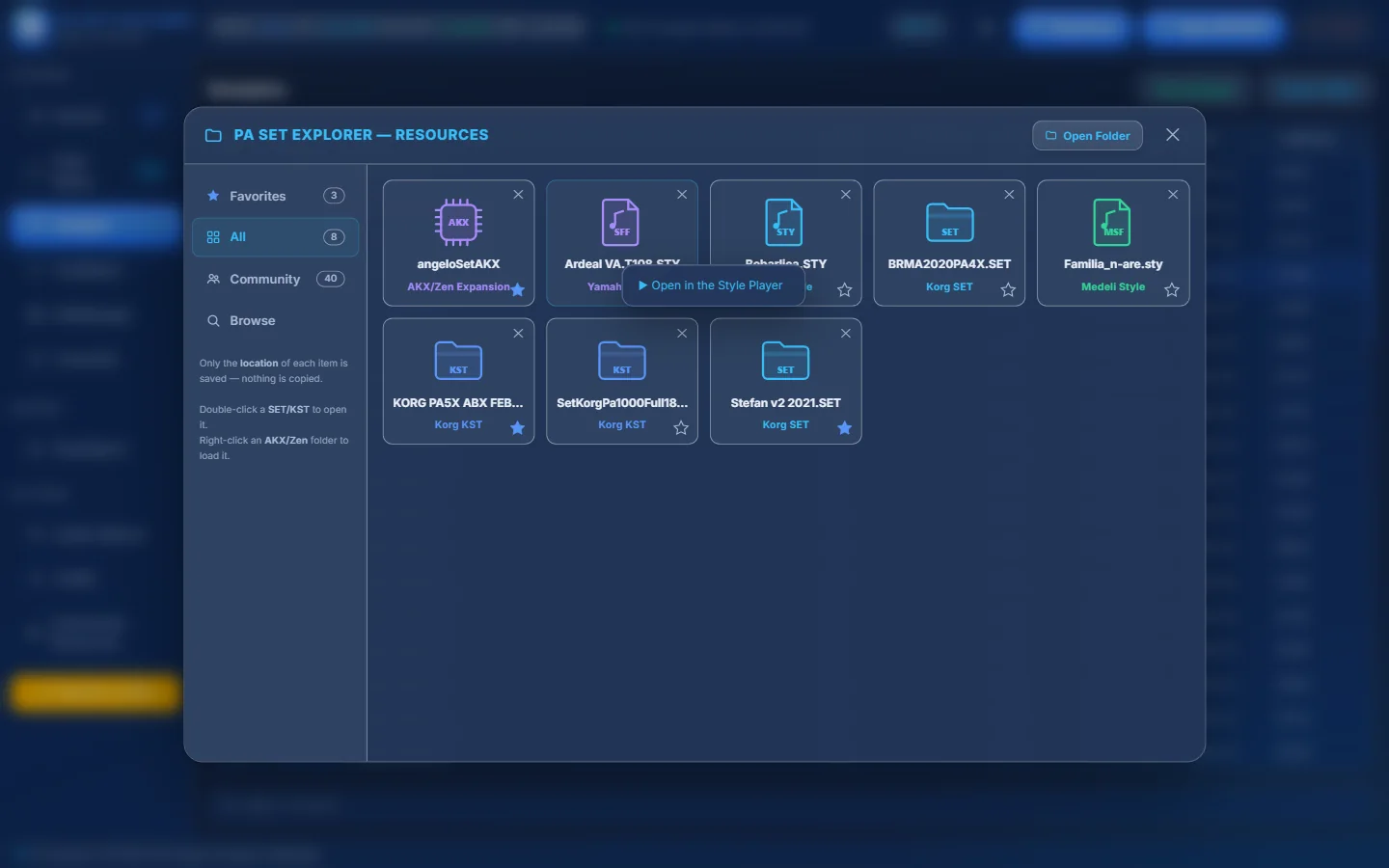
- 1A Yamaha style.
- 2Right-click → ▶ Open in the Style Player.
Resources → Community: your downloads#
Everything you download from the PA SET Explorer Community website (styles, samples and drum kits shared by other musicians) appears here, sorted by brand and type.
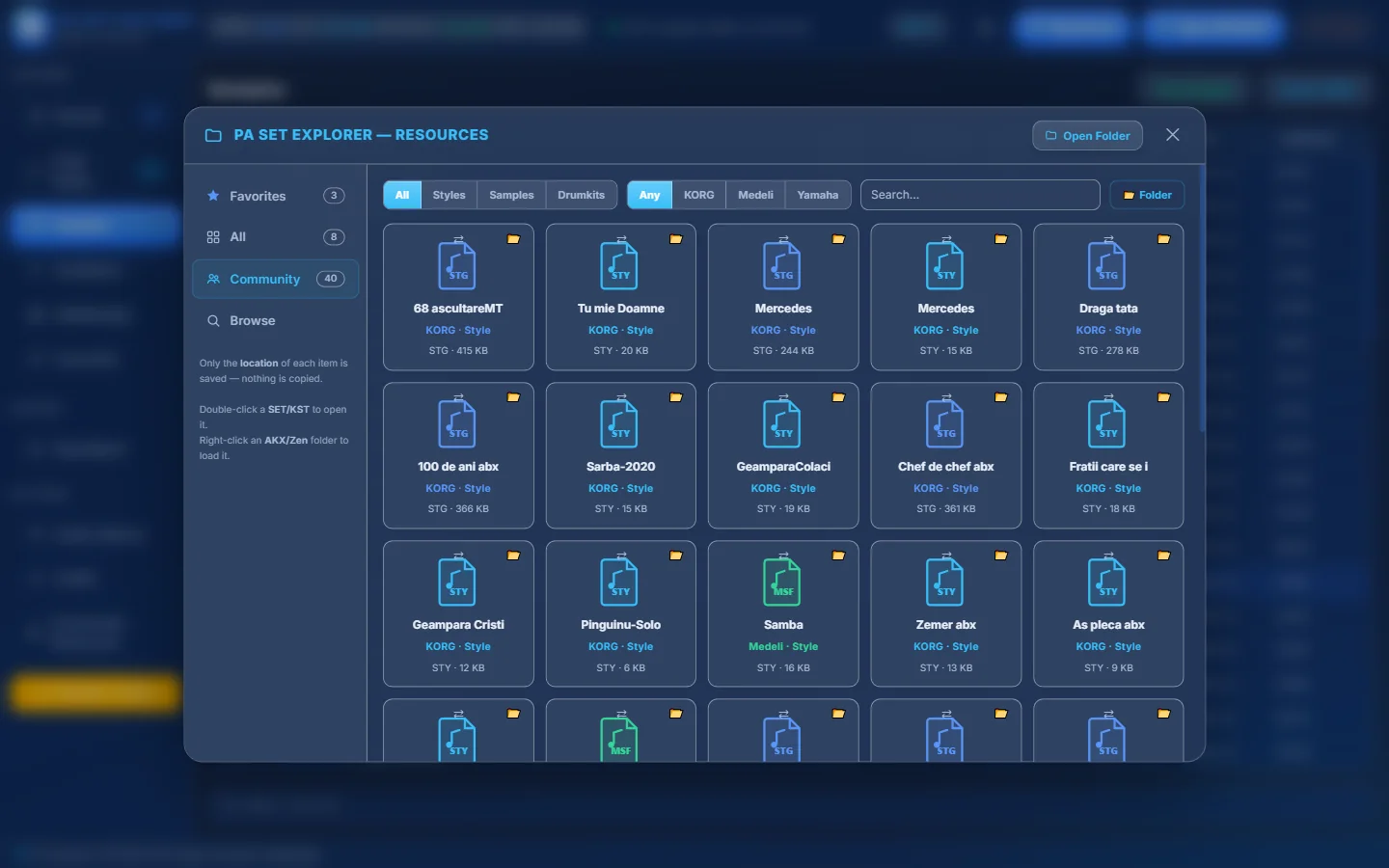
- 1Show All, Styles, Samples or Drumkits.
- 2Show only KORG, Medeli or Yamaha files.
- 3Search by name.
- 4Open the Community downloads folder.
- 5A downloaded resource: name, brand and kind, file type and size.
- 6⇄ Open in the Converter (styles) — convert it to another format.
- 7📂 Show in folder.
- 8A Medeli voice (.voi) downloaded from the Community.
Double-click a style to listen to it in the Style Player. Double-click a sample or a drum kit to open its folder. To put a Community style straight into a SET, use Import Style → From Community on an empty slot (see Importing).
Resources → Browse: add things to the library#
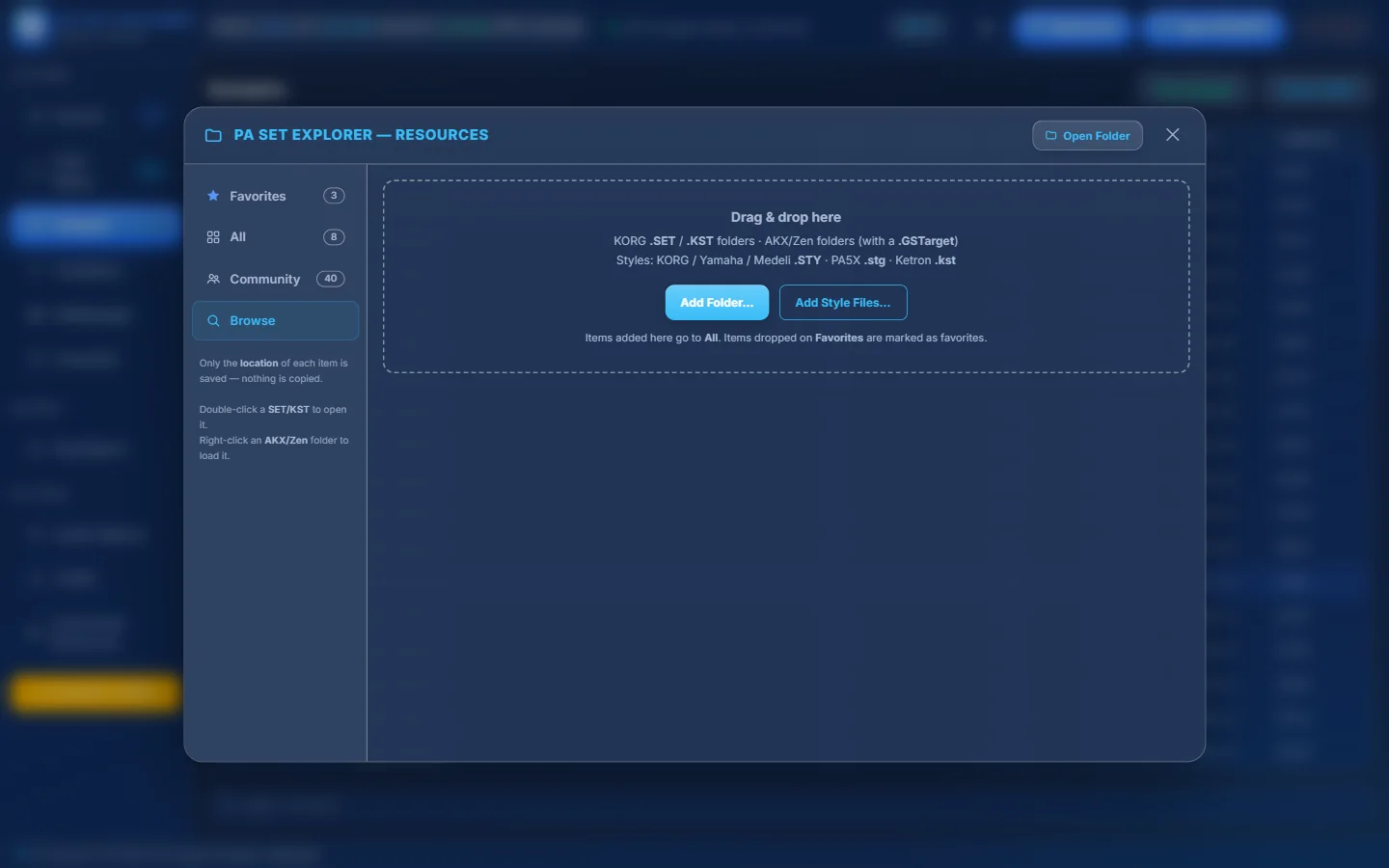
- 1Drag & drop here — KORG .SET/.KST folders, AKX/Zen folders (with a .GSTarget) and style files.
- 2Add Folder… — pick a SET, KST or AKX folder.
- 3Add Style Files… — pick one or more style files (.STY, .sty, .stg, .kst).
- 4Items added here go to All. Items dropped on Favorites are marked as favorites.
- Use Resources as your “style shelf”: add the styles you like from anywhere on your PC, then double-click to listen or import them into a SET with Import Style → From Resources.
- If a card says the item “no longer exists at its saved location”, you moved or deleted it in Windows. Remove the card with ✕ and add it again from its new place.
- Press Esc or click outside to close Resources.
Two SETs at once: Import/Merge#
To copy things between SETs you need two of them open. That is what Import/Merge in SetManager is for:
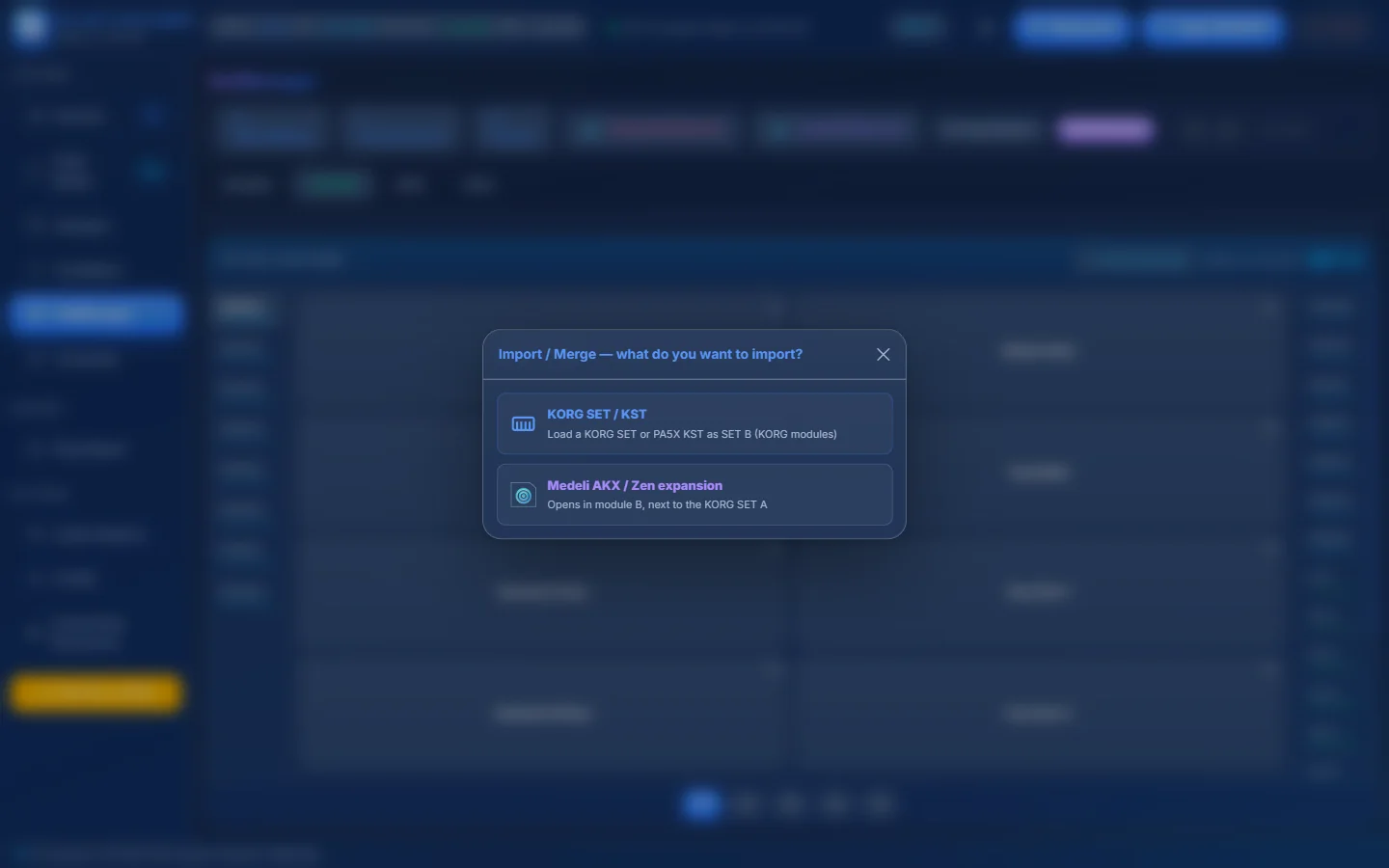
- 1KORG SET / KST — load a second KORG SET or a PA5X KST as SET B, next to your SET A.
- 2Medeli AKX / Zen expansion — open a Medeli AKX/Zen set next to your KORG SET (or next to another AKX set).
- Your main SET — the one you edit and save.
- Everything you drag lands here.
- Has the working copy with Undo, Redo and Save.
- The source SET you take things from.
- Drag its styles, sounds and pads onto SET A.
- Loaded with Import/Merge.
The full story — drag & drop, groups, pages, banks, KST rules and Medeli AKX — is in Combining SETs.