DocsExplore your SETSamples
Samples
The samples used by the sound you selected: one row per sample with its root note, bank, format and rate — play them one by one and export them as WAV.
In this chapter you will learn
- How the Samples section differs from PCM Banks
- Playing and exporting a single sample
- Compressing the samples of one sound
The samples of one sound#
PCM Banks shows all samples of the SET. Samples shows only the samples used by the sound selected in the Sound Library — ordered by the note they belong to. It is the fastest way to check a sampler key by key.
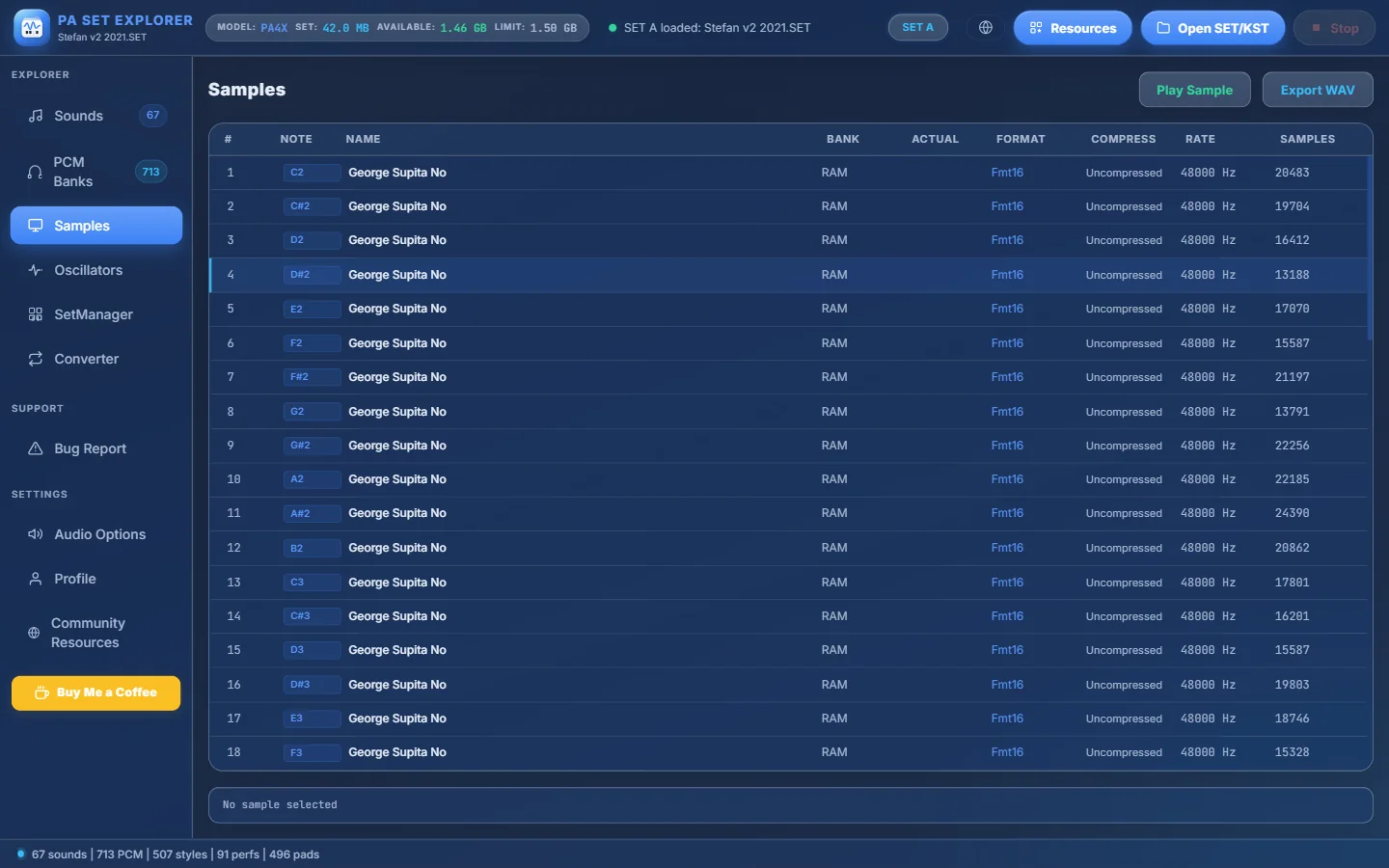
- 1Play Sample plays the selected sample at its own pitch · Export WAV saves it (the file is named after its root note, e.g. D#2.wav).
- 2Columns: #, Note, Name, Bank, Actual (real RAM bank, drum kits only), Format, Compress, Rate and Samples.
- 3The root note of the sample — the key where it plays at its original pitch.
- 4The selected sample.
| Column | Meaning |
|---|---|
| Note | Root note. For drum kits: the key of the drum. |
| Bank | RAM for melodic sounds. For drum kits: ROM (factory) or RAMn. |
| Actual | Drum kits only: the real RAM bank the sample is stored in. |
| Format · Compress | Data format and whether the sample is compressed. |
| Rate · Samples | Sample rate and length in frames. |
- Select with click, Ctrl + click or Shift + click.
- Right-click → Compress / Decompress (same rules as in PCM Banks: only on models with compression, never on PA5X).
Still stuck? Ask in the forum, send a message from your profile, or use Bug Report inside the program. We read everything.