PCM Banks
Every sample stored in the RAM banks of your SET: filter, search, listen, see the waveform, export WAV, compress to save memory and remove duplicate samples.
- What a PCM sample is and what each column means
- Selecting one, several or a range of samples
- Compress and uncompress samples to save memory
- Find and remove duplicate samples safely
- Export samples as WAV files
What are PCM banks?#
The sounds of a KORG SET are built from samples — short recordings of a real instrument. The samples are stored in files called RAM01.PCM, RAM02.PCM… inside the SET’s PCM folder. Each of these files is a PCM bank. The PCM Banks section lists every sample of every bank in one table.
The PCM table and toolbar#
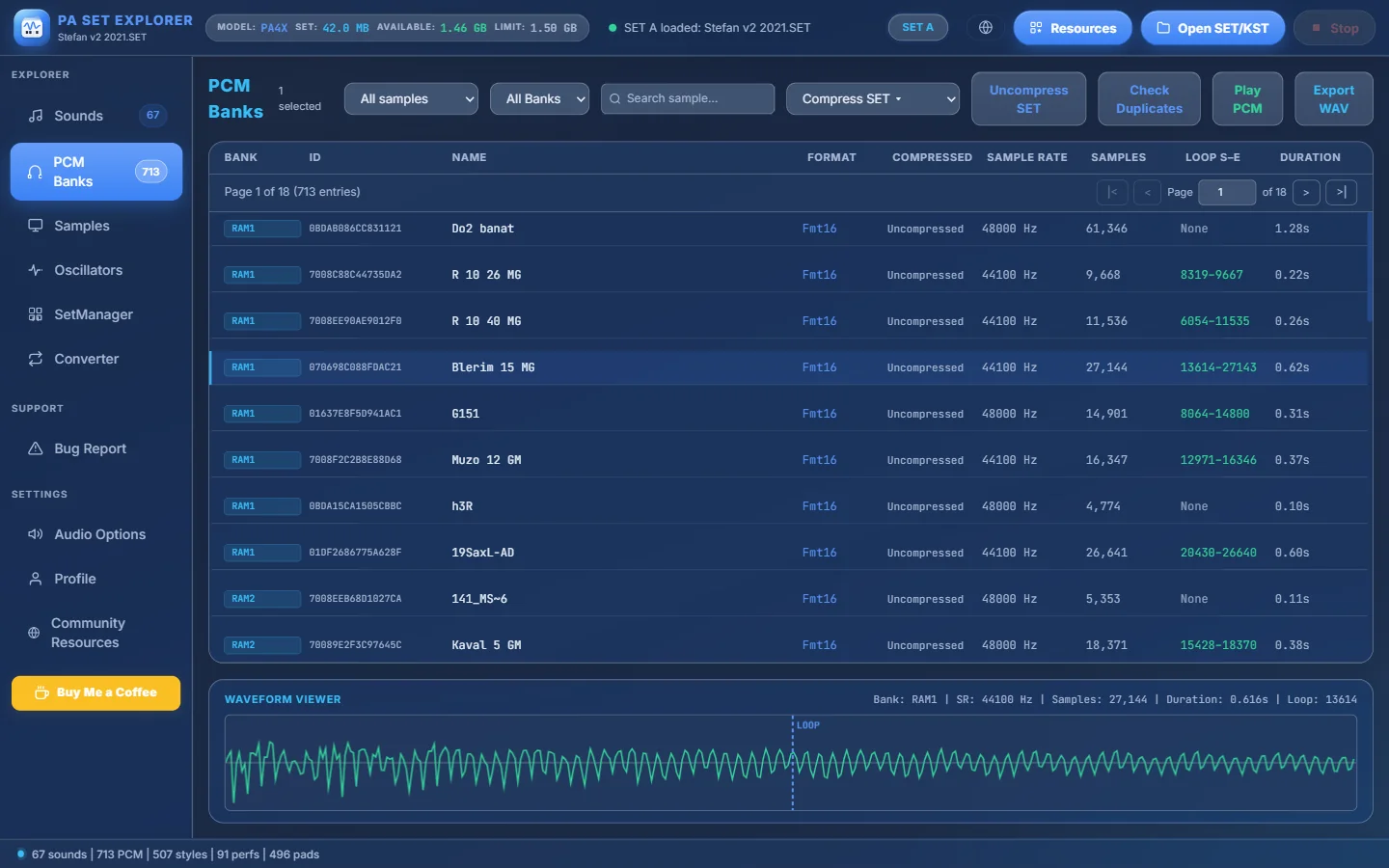
- 1How many samples the SET has (713 here).
- 2How many samples you have selected.
- 3All samples / Compressed / Decompressed and All Banks / RAM1, RAM2… — show only some samples.
- 4Search sample… — type part of a name. Esc clears it.
- 5Compress SET (all samples, or only samples longer than 1, 2, 3, 4, 5 or 10 seconds) and Uncompress SET.
- 6Check Duplicates — finds identical samples stored more than once.
- 7Play PCM plays the selected sample once · Export WAV saves the selection as WAV.
- 840 samples per page: page buttons and a box to jump to a page.
- 9Loop S–E: the loop start and end. “None” = the sample does not loop.
- 10The selected sample.
- 11Details of the selected sample: bank, sample rate, length, duration and loop start.
- 12Waveform Viewer — the selected sample, with a dashed line where the loop starts.
| Column | Meaning |
|---|---|
| Bank | Which PCM bank the sample is in (RAM1, RAM2…). |
| ID | The sample’s unique 16-digit identifier. |
| Name | The sample name. |
| Format | The data format of the sample (for example Fmt16 = 16-bit). |
| Compressed | Whether the sample is stored compressed. |
| Sample Rate | Recording rate, e.g. 44100 Hz or 48000 Hz. |
| Samples | The length in sample frames. |
| Loop S–E | Loop start – end, or None. |
| Duration | Length in seconds. |
Selecting samples#
- Click — select one sample (and show its waveform).
- Ctrl + click — add or remove one sample from the selection.
- Shift + click — select everything between the last click and this one.
The right-click menu#
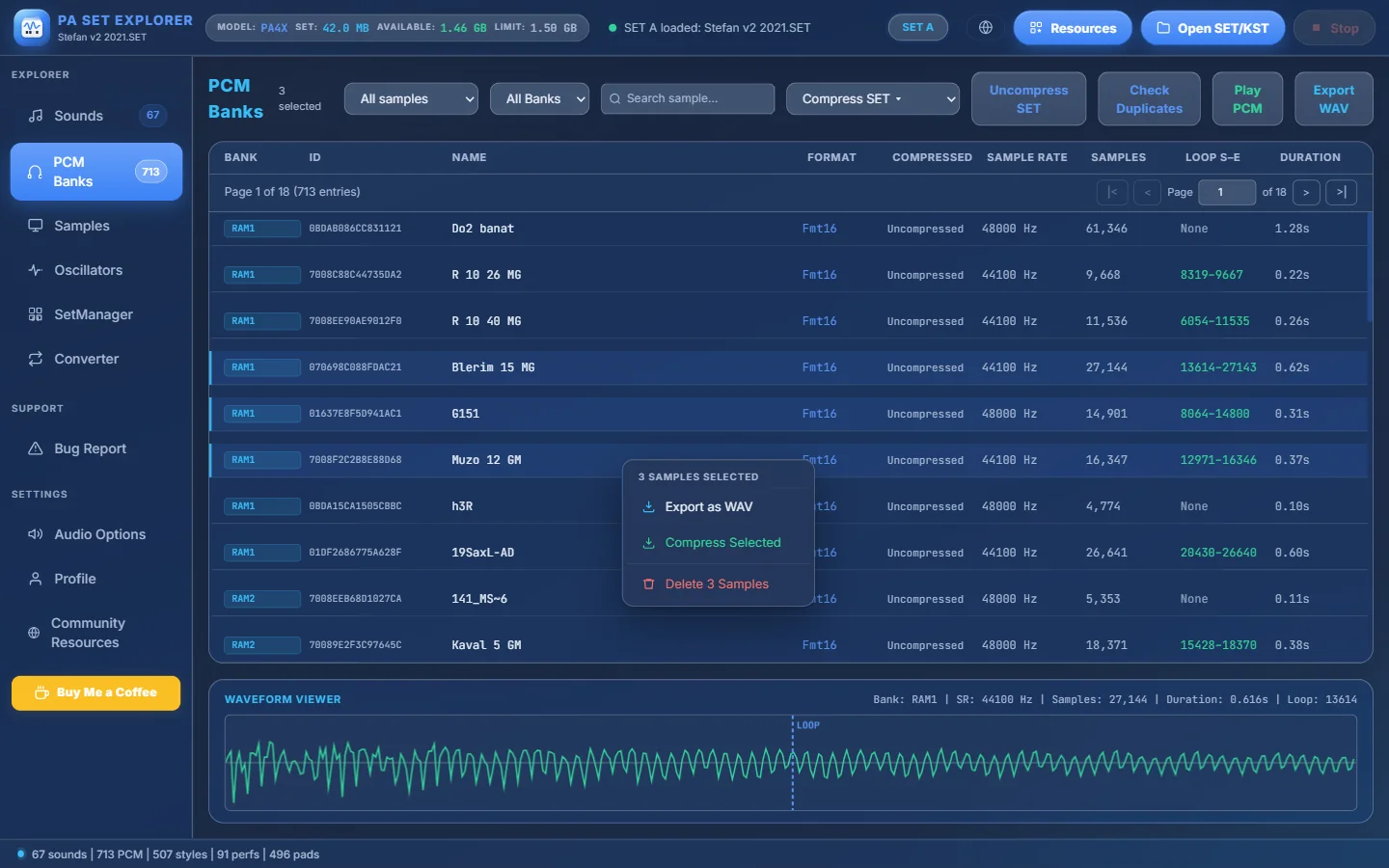
- 1Three samples selected with Ctrl + click.
- 2The menu acts on the whole selection: Export as WAV, Compress (or Decompress) Selected, Delete.
| Item | What it does |
|---|---|
| Play | Plays the sample once (only when one sample is selected). |
| Export as WAV | One sample → choose a file name; several → choose a folder. |
| Compress / Compress Selected | Stores the samples compressed (only on models that support compression). A Compression Results window shows what happened. |
| Decompress / Decompress Selected | Stores them uncompressed again. |
| Delete / Delete N Samples | Removes the samples from the .PCM files and RAM.KMP (after a confirmation). |
Compress or uncompress to save memory#
Keyboards with compression (PA700, PA1000, PA3X, PA4X) can store samples compressed, so more samples fit into their memory. When your SET is too big for the memory bar, compressing is the quickest fix.
- 1Choose what to compress
Open Compress SET ▾: “Compress all samples” or only samples longer than 1, 2, 3, 4, 5 or 10 seconds. Long samples save the most memory.
- 2Confirm
The program asks “Compress all samples? This may take a while.” Confirm and wait.
- 3Check the memory bar
The memory bar at the top updates. Listen to a few sounds to make sure you like the result.
Check Duplicates — free memory safely#
Big SETs often contain the same sample twice (for example after copying sounds from other SETs). Check Duplicates finds identical audio and lets you keep one copy. Sounds that used a removed copy are re-pointed to the kept one, so they sound exactly the same.
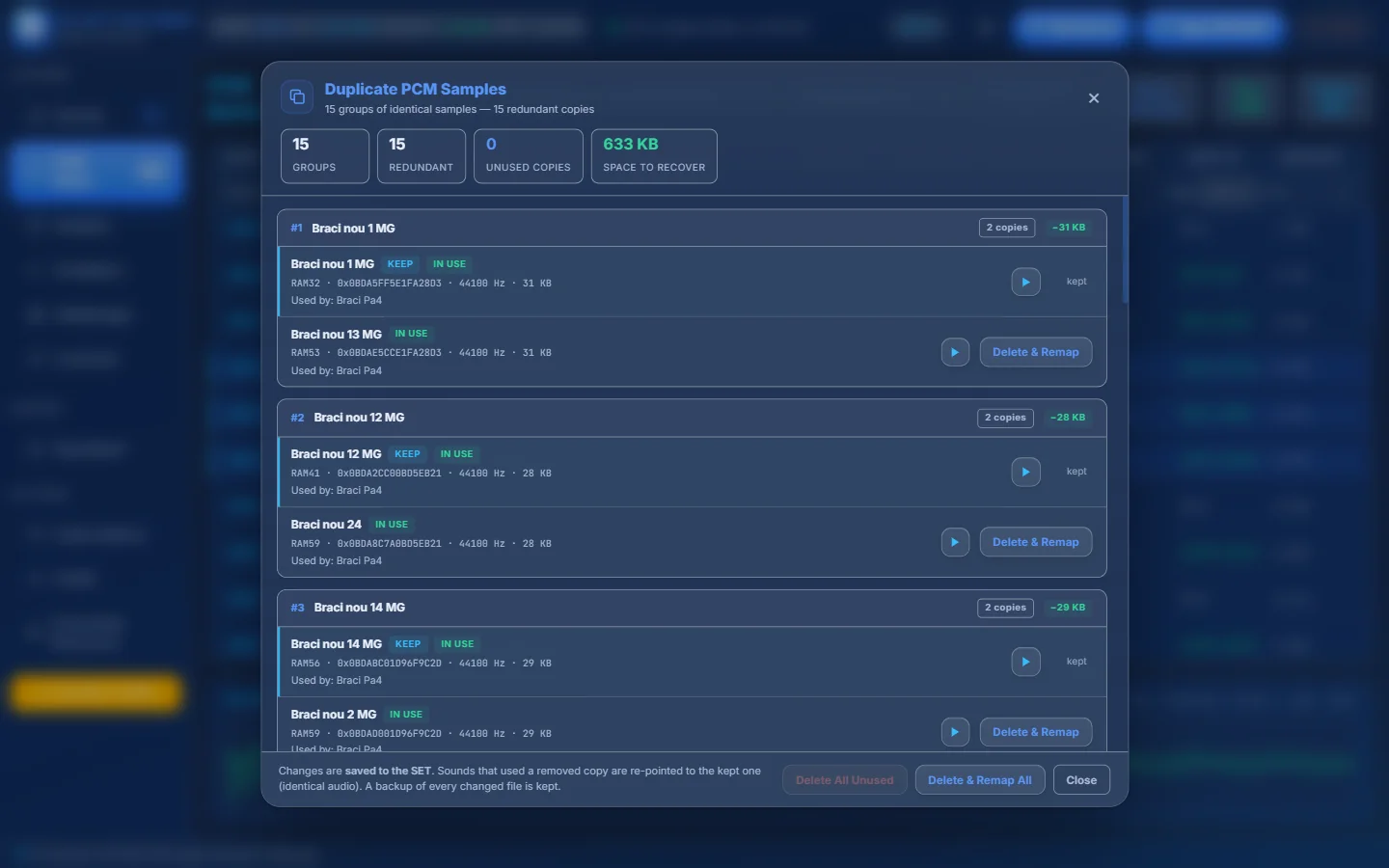
- 1Summary: groups of identical samples, redundant copies, copies nobody uses and how much memory you can recover.
- 2One group: the same audio stored twice.
- 3KEEP = the copy that stays. IN USE = a sound uses it. Unused copies show UNUSED.
- 4▶ — listen to a copy to compare.
- 5Delete & Remap — removes this copy and moves its sounds to the kept one. Unused copies show a simple Delete.
- 6Changes are saved to the SET, and a backup of every changed file is kept.
- 7Delete All Unused and Delete & Remap All — do every group at once.
- Samples whose names only differ by the side — like “Shagy (06L)” and “Shagy (06R)” — are the left and right halves of a stereo sample. They are not duplicates and are not listed.
- Start with Delete All Unused: it cannot change how any sound plays.
- After a clean-up, open the Sound Library and play a few of the re-pointed sounds.
Export samples as WAV#
- Select one or more samples (click, Ctrl + click, Shift + click).
- Press Export WAV (or right-click → Export as WAV).
- One sample: choose the file name. Several: choose a folder — each sample becomes its own
.wav.
The WAV files are 16-bit mono at the sample’s own rate, ready for any DAW or sampler.