Sound Library
The list of every sound and drum kit in your SET: what each column means, how to listen, how to inspect a sound key by key, and how to export or delete it.
- What every column of the list means
- Three ways to listen: Demo, mouse and computer keyboard
- The right-click menu: Play, Export, Details, Delete
- Exporting a sound as .sf2, .voi/.kit, KORG sampler or WAV
- Reading the Sound Details window like a pro
The Sound Library at a glance#
Click Sounds in the sidebar. You see one row per sound of the SET — both normal sounds (samplers) and drum kits. Click a row to select it: the sound becomes the “current sound” for the keyboard, the Samples section and the Oscillators section.
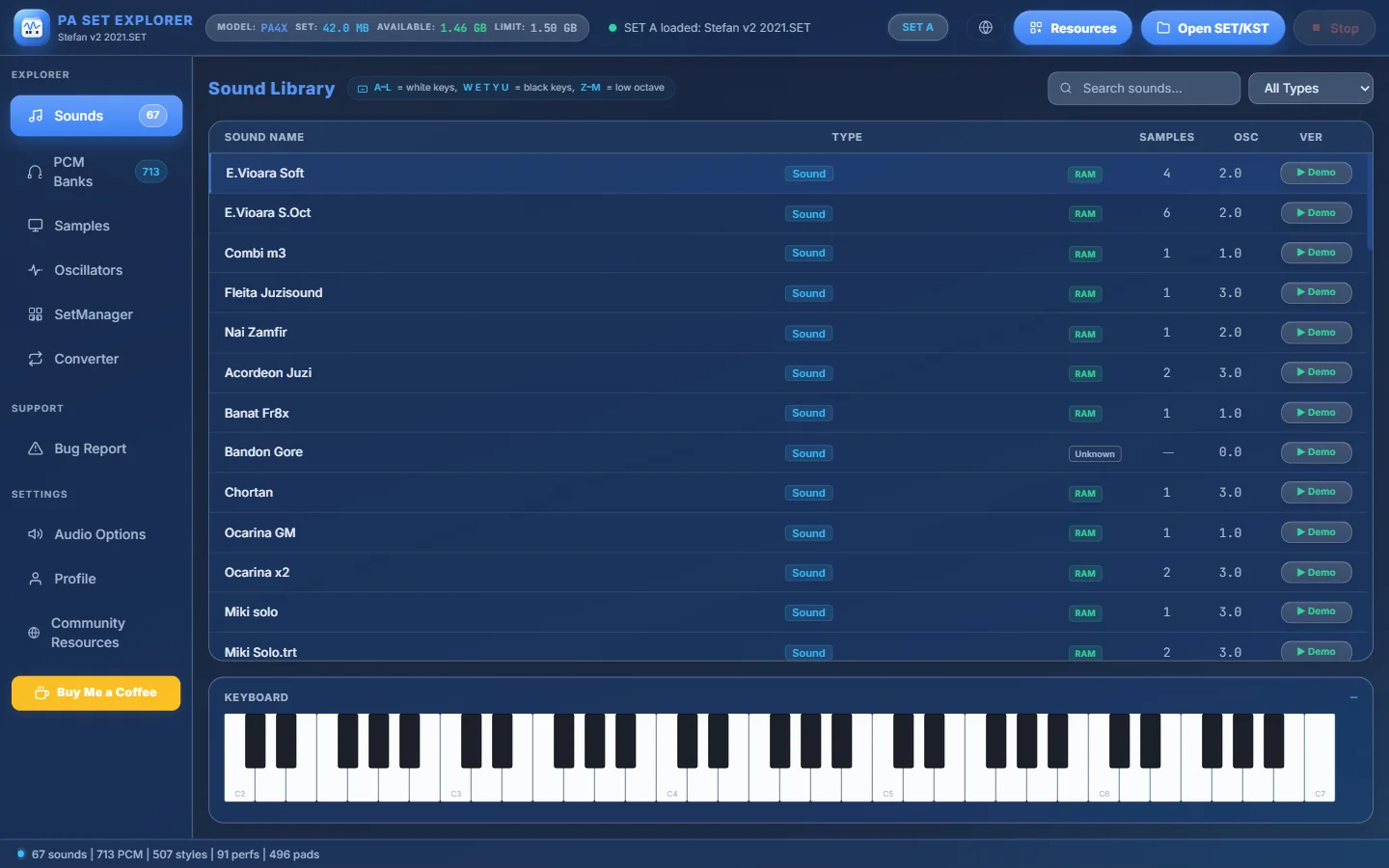
- 1How many sounds the SET has.
- 2Search sounds… — type part of a name to filter the list instantly.
- 3All Types / Sounds Only / Drum Kits Only — show only one kind.
- 4A selected row (highlighted). Click any row to select it.
- 5Type — “Sound” for a normal sound, “Drum Kit” for a drum kit.
- 6Where the samples live — RAM, Factory ROM, Mixed or Unknown (see the table below).
- 7Number of oscillators (layers) the sound uses.
- 8Format version of the sound (for example 2.0, 3.0, 5.0) — newer keyboards use newer versions.
- 9▶ Demo — plays a short phrase with this sound (drum kits play a groove).
- 10Reminder: your computer keyboard plays the selected sound.
- 11The on-screen keyboard — click a key to play the selected sound.
What the samples badge means#
| Badge | Meaning | What it tells you |
|---|---|---|
| RAM | All samples of the sound are inside the SET (PCM banks). | The sound is portable: it travels with the SET to any compatible keyboard. |
| Factory ROM | The sound uses the keyboard’s built-in samples, not samples from the SET. | It only sounds right on a keyboard that has those factory samples. |
| Mixed | Some oscillators use RAM samples, others factory ROM samples. | Partly portable. |
| Unknown | The type could not be read from the bank. | Drum kits always show Unknown here — open Details to see each key. |
Three ways to listen#
- ▶ Demo on any row — plays a short phrase chosen for the sound (bass, guitar, accordion…). A drum kit plays a short groove. It does not change your selection.
- The on-screen keyboard — click a key. Where you click matters: the top of a key plays soft, the bottom plays loud (the note and velocity appear next to the keyboard title). Keys that the sound does not use are dimmed.
- Your computer keyboard — with a sound selected (and no text box active), your PC keys become piano keys:
The right-click menu#
Right-click any sound to open its menu. The sound is selected at the same time.
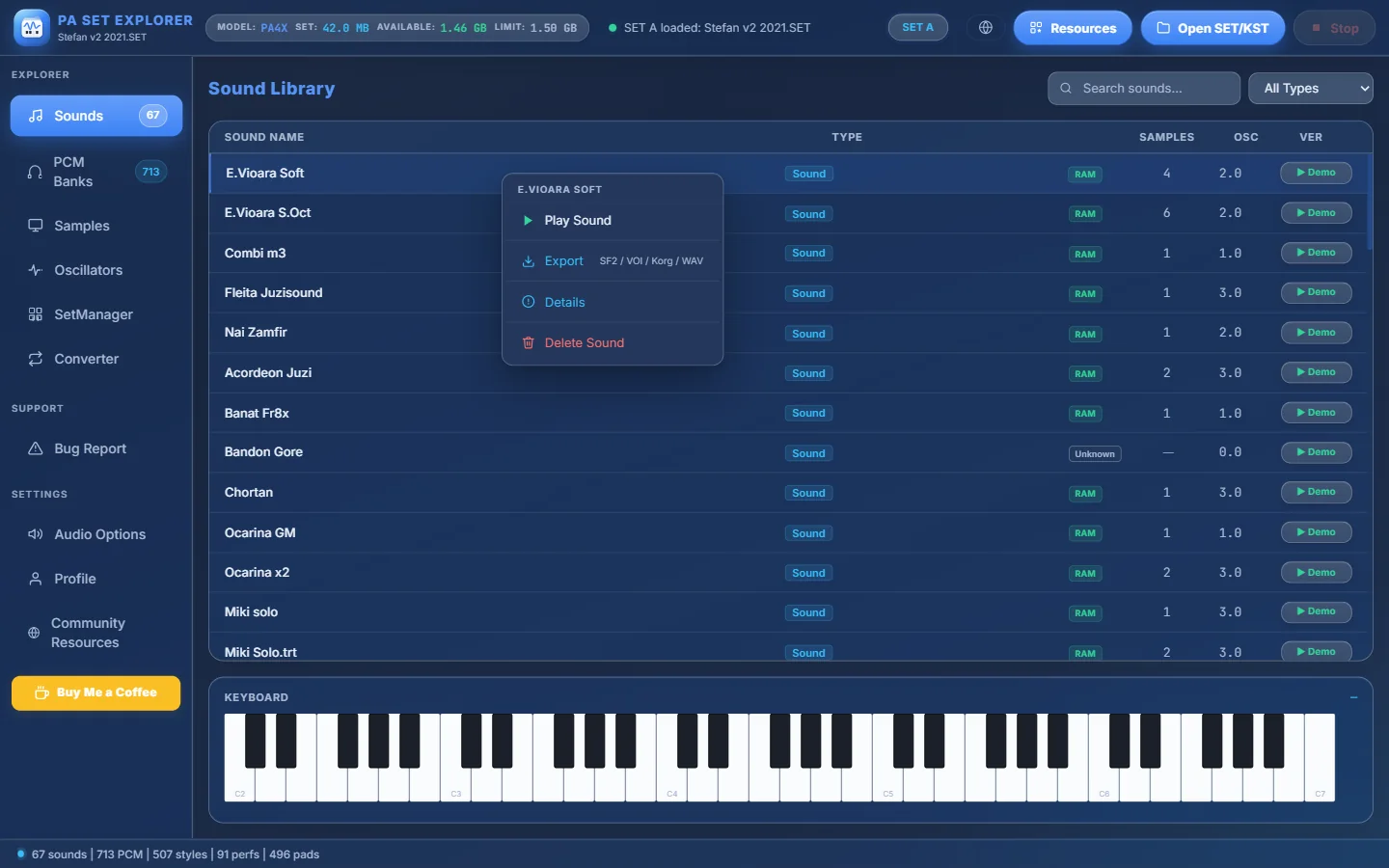
- 1Play Sound — plays middle C (C4) once.
- 2Export — save the sound as SF2, VOI/KIT, KORG sampler or WAV.
- 3Details — opens the Sound Details window (zones, parameters, effects).
- 4Delete Sound — removes the sound (and, if you want, its samples).
Export a sound#
Choose Export in the right-click menu. Pick one of four formats:
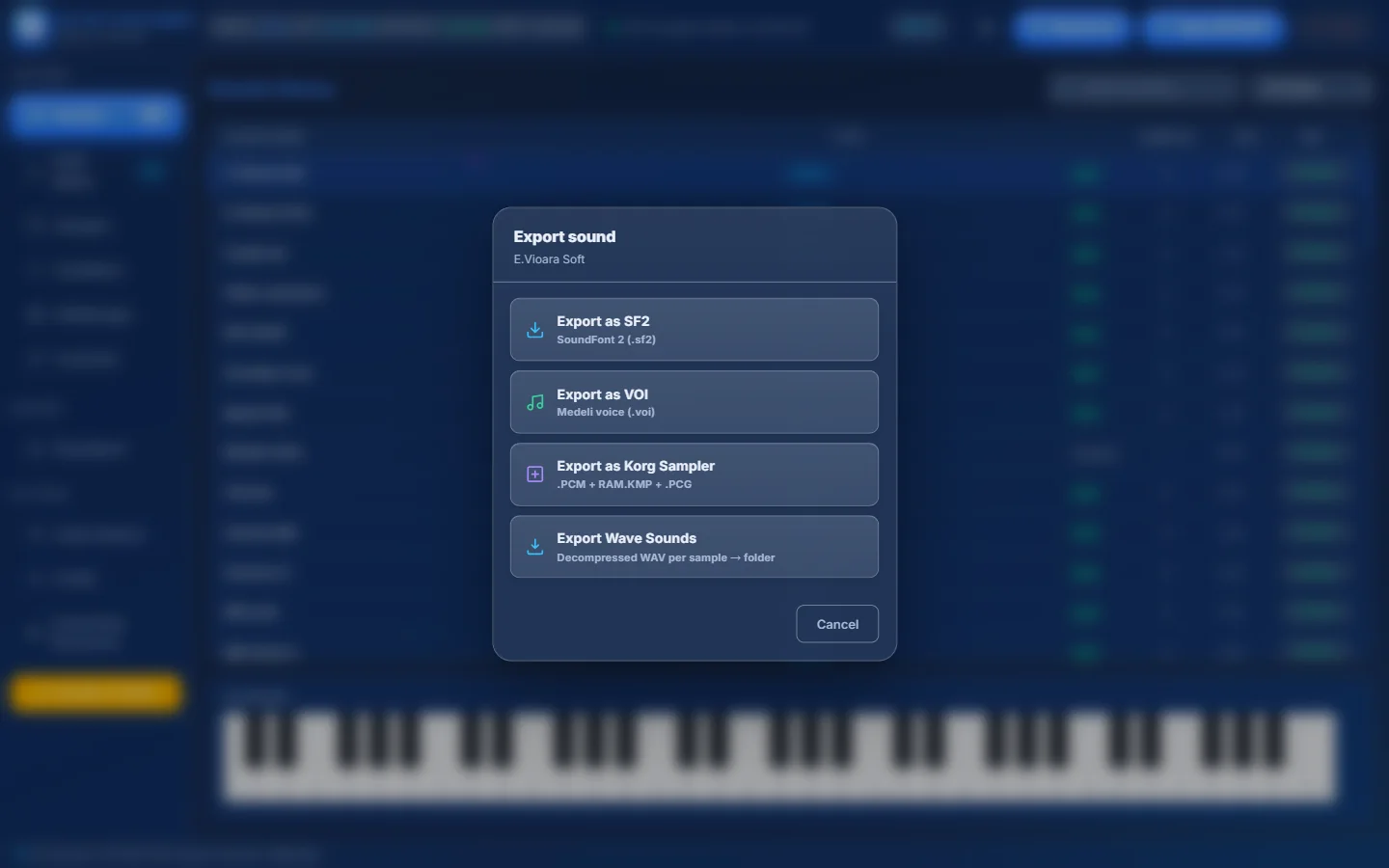
- 1Export as SF2 — one SoundFont file (.sf2) with every sample and key zone. Opens in almost any sampler or DAW.
- 2Export as VOI — a Medeli voice (.voi). For a drum kit this button reads Export as KIT (.kit).
- 3Export as Korg Sampler — a mini KORG SET with the sound, its multisample and its samples (.PCG + RAM.KMP + .PCM).
- 4Export Wave Sounds — every sample as a separate WAV file, named after its root note (C4.wav, D#4.wav…).
| Option | You choose | You get |
|---|---|---|
| Export as SF2 | where to save the file | <name>.sf2 |
| Export as VOI / KIT | a folder | one or more .voi (or .kit) files |
| Export as Korg Sampler | the sampler version, then a folder | a folder <SoundName>.SET with MULTISMP/RAM.KMP, SOUND/USER01.PCG (or USERDK01.PCG for drum kits) and PCM/RAM01.PCM |
| Export Wave Sounds | a folder | one 16-bit WAV per sample |
Sampler version 2.1 or 3.0?#
Export as Korg Sampler asks for the sampler version, because older and newer keyboards store multisamples differently:
- PA600, PA500 and older models
- The only choice when the source sound is v2.1
- PA700, PA4X, PA1000 and newer models
- Available when the source sound is v3.0
- The mini SET made by Export as Korg Sampler can be opened as SET B in SetManager, and its sound dragged into any other SET.
- Export as SF2 to keep a backup of your favourite sounds that any sampler can read.
- Want the sound on a Medeli AKX? Export as VOI / KIT — or simply drag it onto an AKX Samples pack (see Medeli AKX).
Sound Details — look inside a sound#
Choose Details in the right-click menu. The window shows how the sound is mapped on the keyboard, key by key.
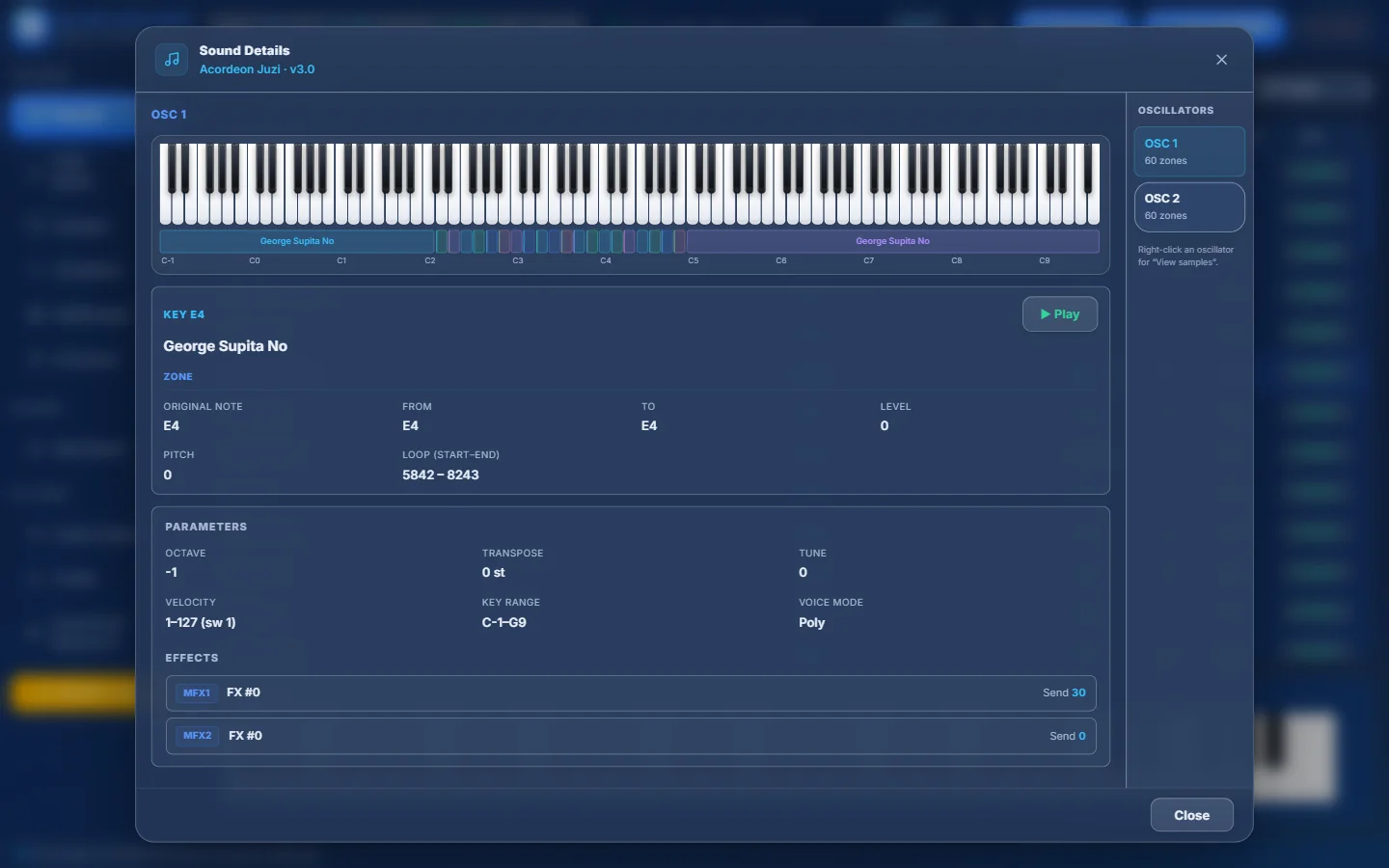
- 1A keyboard covering the full range. Click a key to hear it and inspect it (hold the mouse to keep it sounding).
- 2The zone strip: each coloured block is one sample and the keys it covers. Click a block for its info.
- 3Information about the key you clicked: the sample name and its zone — original note, from/to, level, pitch and loop points.
- 4▶ Play — hear the clicked key again.
- 5Parameters of the oscillator: octave, transpose, tune, velocity range, key range and voice mode.
- 6Effects used by the sound (MFX1, MFX2…) with their send levels.
- 7Oscillators of the sound with their number of zones. Click one to show it.
- 8Right-click an oscillator → View samples lists its samples, each with a ▶ button.
For a drum kit, every key can be a different instrument, so the window shows more per key:
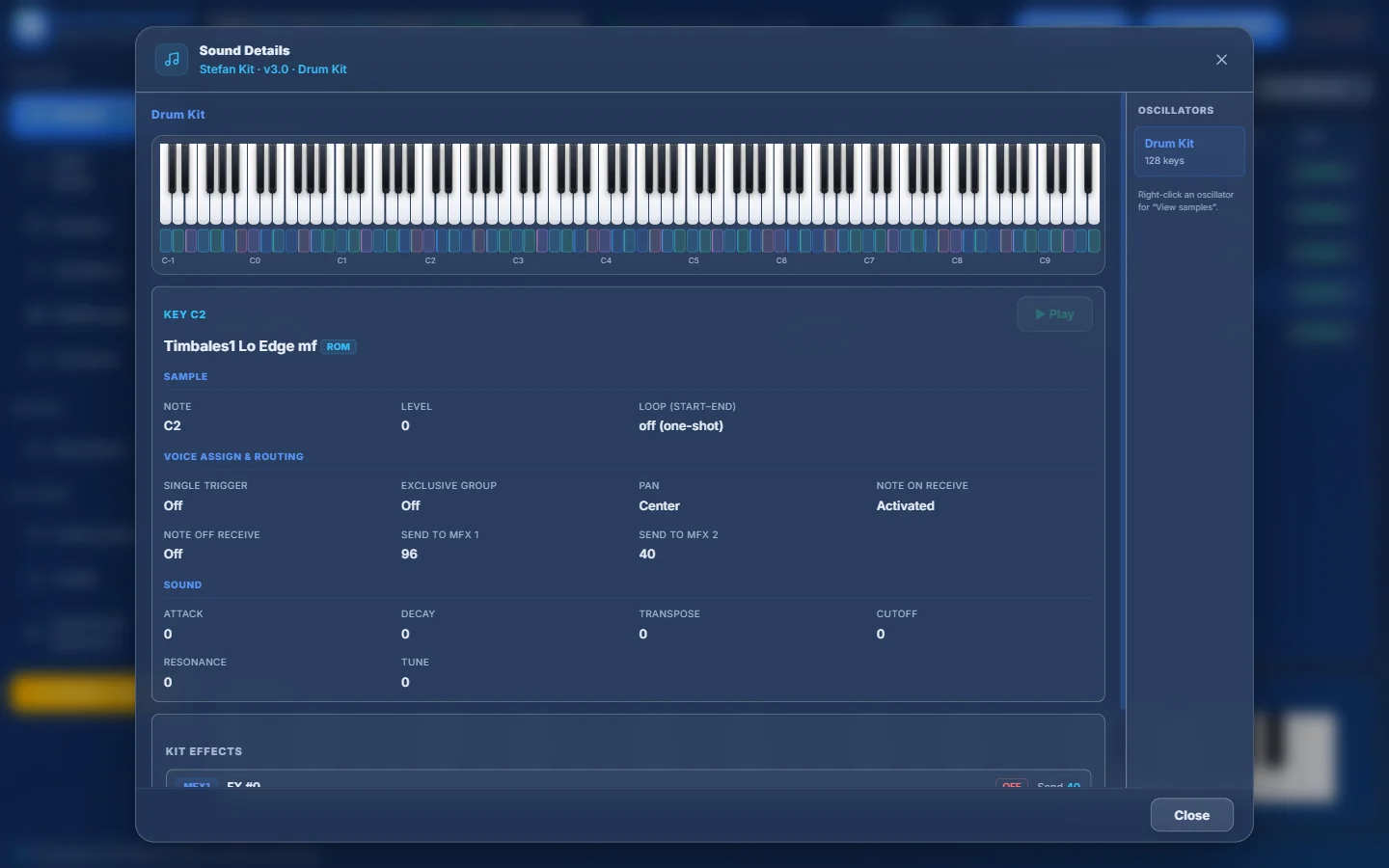
- 1Every coloured block under the keys is one drum sound. Click a key.
- 2ROM badge: this key uses a factory sample of the keyboard (not stored in the SET).
- 3Sample: note, level and loop (drums are usually “off (one-shot)”).
- 4Voice Assign & Routing: single trigger, exclusive group, pan, note on/off receive, sends to MFX 1 and 2.
- 5Sound: attack, decay, transpose, cutoff, resonance and tune of this key.
- 6Kit Effects of the drum kit.
- 7For drum kits the right column shows Drum Kit and how many keys it has.
- Use Details to check whether a sound is complete before copying it: keys marked ROM depend on the factory samples of the keyboard.
- The loop points (start – end) tell you whether a sample loops. “off (one-shot)” means it plays once and stops.
- Press Esc or Close to close the window.
Delete a sound#
Choose Delete Sound in the right-click menu.
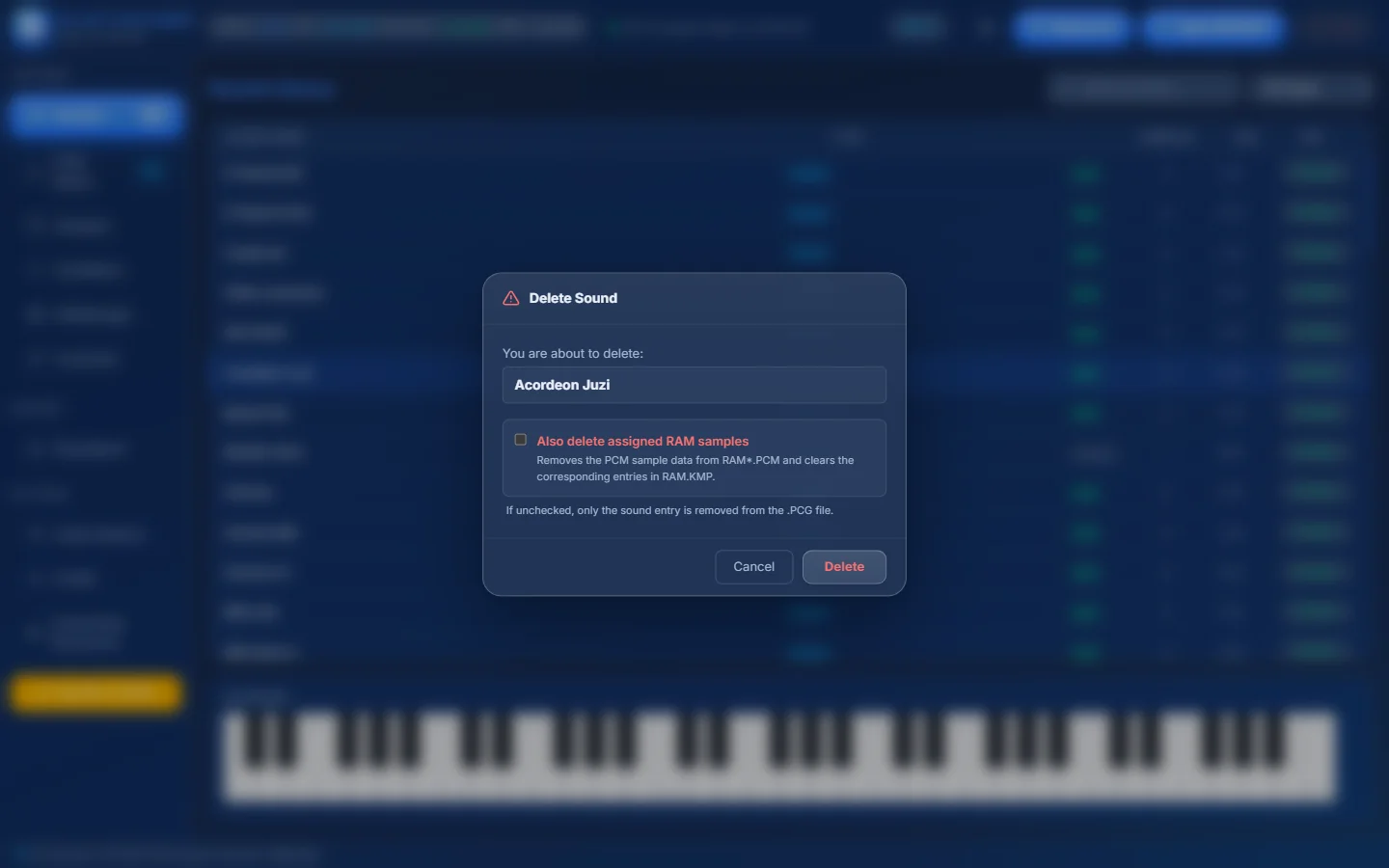
- 1The sound you are about to delete.
- 2Also delete assigned RAM samples — also removes its samples from the PCM banks. Only samples that no other sound uses are removed.
- 3If you leave it unticked, only the sound entry is removed from the .PCG file; the samples stay.
- 4Cancel or Delete.