Saving & Undo
How PA SET Explorer protects your SET: every change goes to a working copy and into a list. Undo and redo any step, review everything in the Save window, and write it to your SET only when you are happy.
- What the working copy is and why your SET is safe
- Undo, Redo and the keyboard shortcuts
- The Save window: Save changes or Discard changes
- What happens when you close the program or open another SET
- What is saved immediately (and what is not)
The working copy — your SET is safe#
When you open a SET as SET A, PA SET Explorer makes a working copy of it. Every change — copying, importing, renaming, deleting, compressing, editing styles — happens on that copy. Your real SET folder is not touched until you press Save.
Things that are recorded (and can be undone):
Undo and Redo#
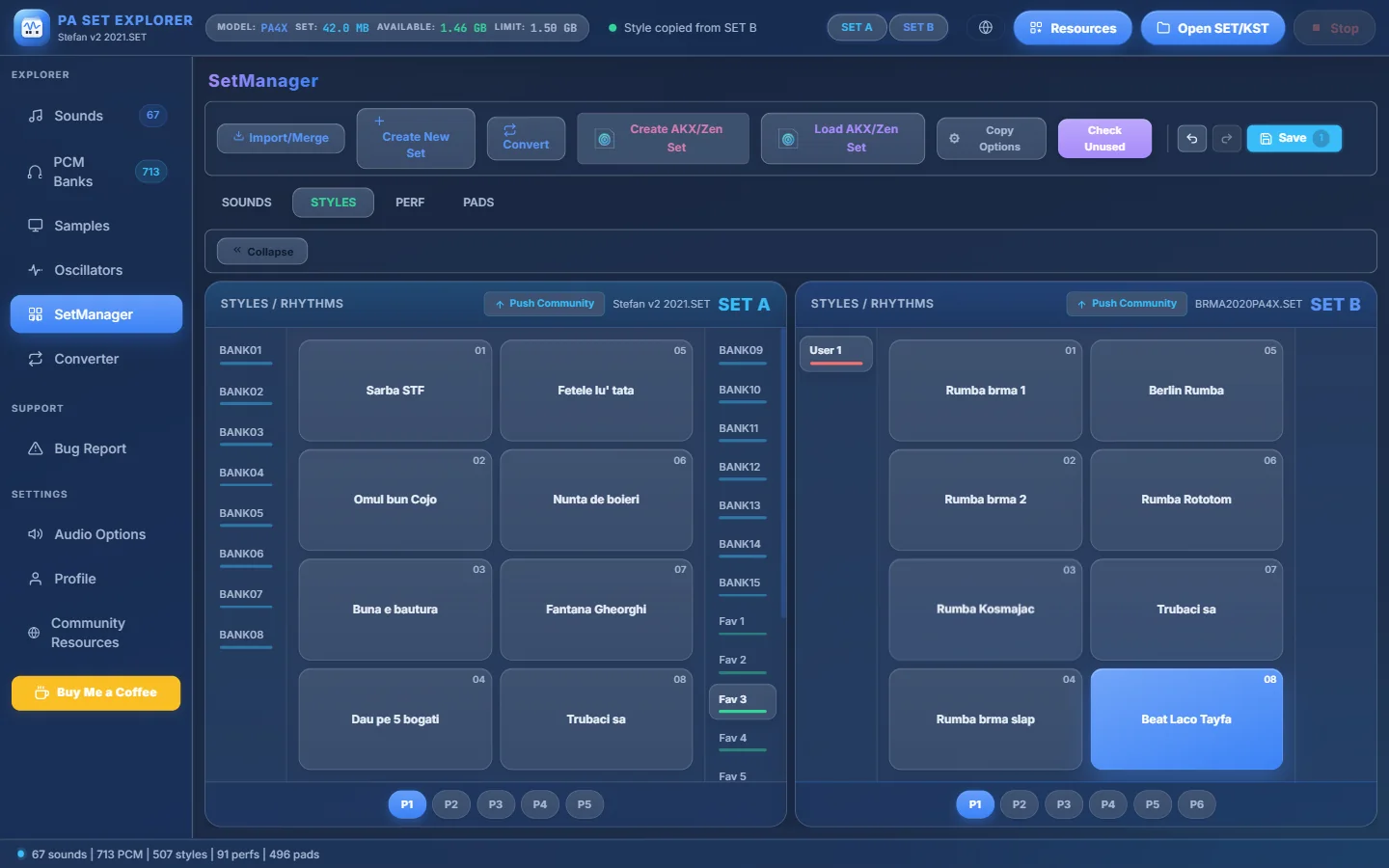
- 1A change you made (a copied style).
- 2Undo — takes the last change back. Hover it to see which change.
- 3Redo — puts it back.
- 4Save — the badge shows how many changes are waiting.
- 5The status line confirms what happened.
The Save window#
Press Save (or Ctrl+S). You see every change, oldest first:
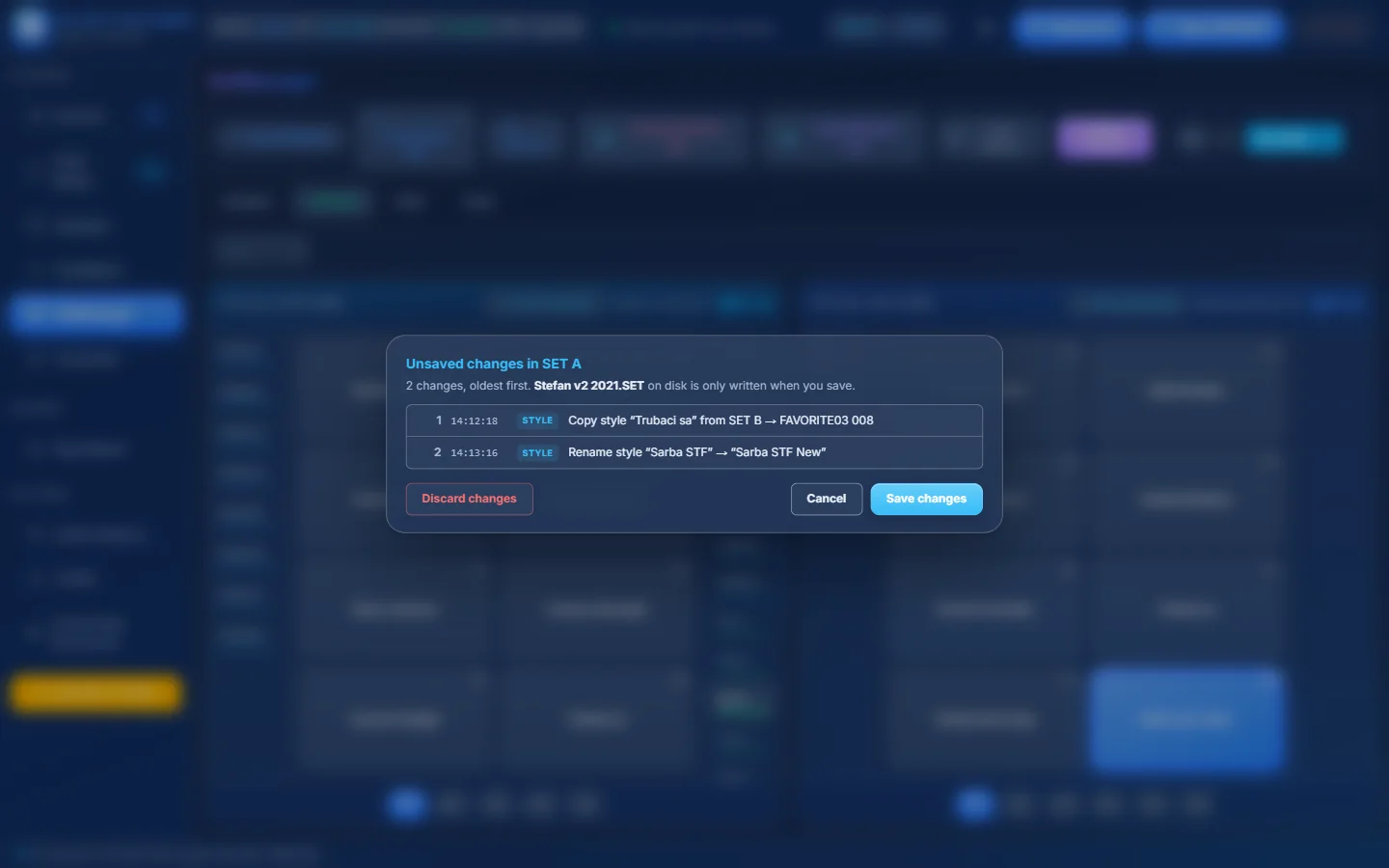
- 1How many changes, and a reminder that the SET on disk is only written when you save.
- 2Change 1: the time and what was done — “Copy style ‘Trubaci sa’ from SET B → FAVORITE03 008”.
- 3The kind of change: Style, Sound, Sample, Pad, Perf or Group.
- 4Change 2: “Rename style ‘Sarba STF’ → ‘Sarba STF New’”.
- 5Discard changes — throw away all changes: SET A goes back to how it is on disk (you are asked to confirm).
- 6Cancel — close the window and keep working.
- 7Save changes — write everything into your SET.
After saving, a message confirms how many files were written (and removed). The SET on disk is now exactly what you saw in the program — copy it to your USB stick and load it on the keyboard.
- Save often when you build a big SET — each Save is a safe point.
- Not sure about your changes? Discard changes brings the SET back to its last saved state in one click.
- Saving writes files safely (to a temporary file first, then replacing), so a crash during saving does not leave half-written files.
Closing the program or opening another SET#
| If you… | and SET A has unsaved changes… |
|---|---|
| open another SET (button, drag & drop, Resources), create a new SET or convert an AKX set to KORG | you are asked “Save the changes to SET A first?” → Save / Don’t save / Cancel. |
| close the program | you are asked “Unsaved changes in SET A” → Save and exit / Exit without saving / Cancel. |
What is NOT part of the working copy#
| Item | When it is written |
|---|---|
| Medeli AKX / Zen sets | Immediately — every add, rename, delete or edit is written to the AKX set at once. There is no Undo for AKX sets: keep a backup of the AKX folder. |
| AKX voice / kit Properties | When you press 💾 Save in the Properties window (a backup is kept). |
| Converter outputs | New files in the folder you choose — the source file is never changed. |
| Exported sounds, styles, pads | New files in the folder you choose. |
| Changes made in SET B | SET B is a source; the working copy, Undo and Save belong to SET A. |
Is there a Ctrl+R shortcut?
No. Undo is Ctrl+Z, redo is Ctrl+Y (or Ctrl+Shift+Z), and Ctrl+S opens the Save window.
I pressed Save by mistake. Can I go back?
Undo works on the changes since the last Save. After saving, the SET on disk is the new state. That is why it is a good idea to keep an untouched copy of your original SET.