Medeli AKX / Zen
Create and load Medeli AKX/Zen sets, organise them in packs, import voices, kits and styles, edit voices layer by layer, edit styles and Quick Settings, and convert KORG SETs and KSTs into AKX — or AKX sets back into KORG.
- Creating and loading an AKX/Zen set
- The AKX panel: memory bar, packs and items
- Creating packs and adding files
- Editing voices / drum kits (Properties) and styles (Quick Settings, tracks)
- KORG → AKX (drag & drop and Convert Set) and AKX → KORG
Create or load an AKX/Zen set#
An AKX/Zen set is a folder with a .GSTarget file, the expansion that the Medeli GrandSuite program sends to an AKX10 / AKX10S keyboard. PA SET Explorer opens these sets and lets you fill them.
- SetManager → Create AKX/Zen Set
- Type a name and choose 256 MB or 768 MB
- Press Create and choose the parent folder
- The set is created as a sub-folder with that name
- SetManager → Load AKX/Zen Set (or Resources, or drop the folder on the window)
- Choose the memory of the set (for the memory bar)
- Pick the set’s .GSTarget file
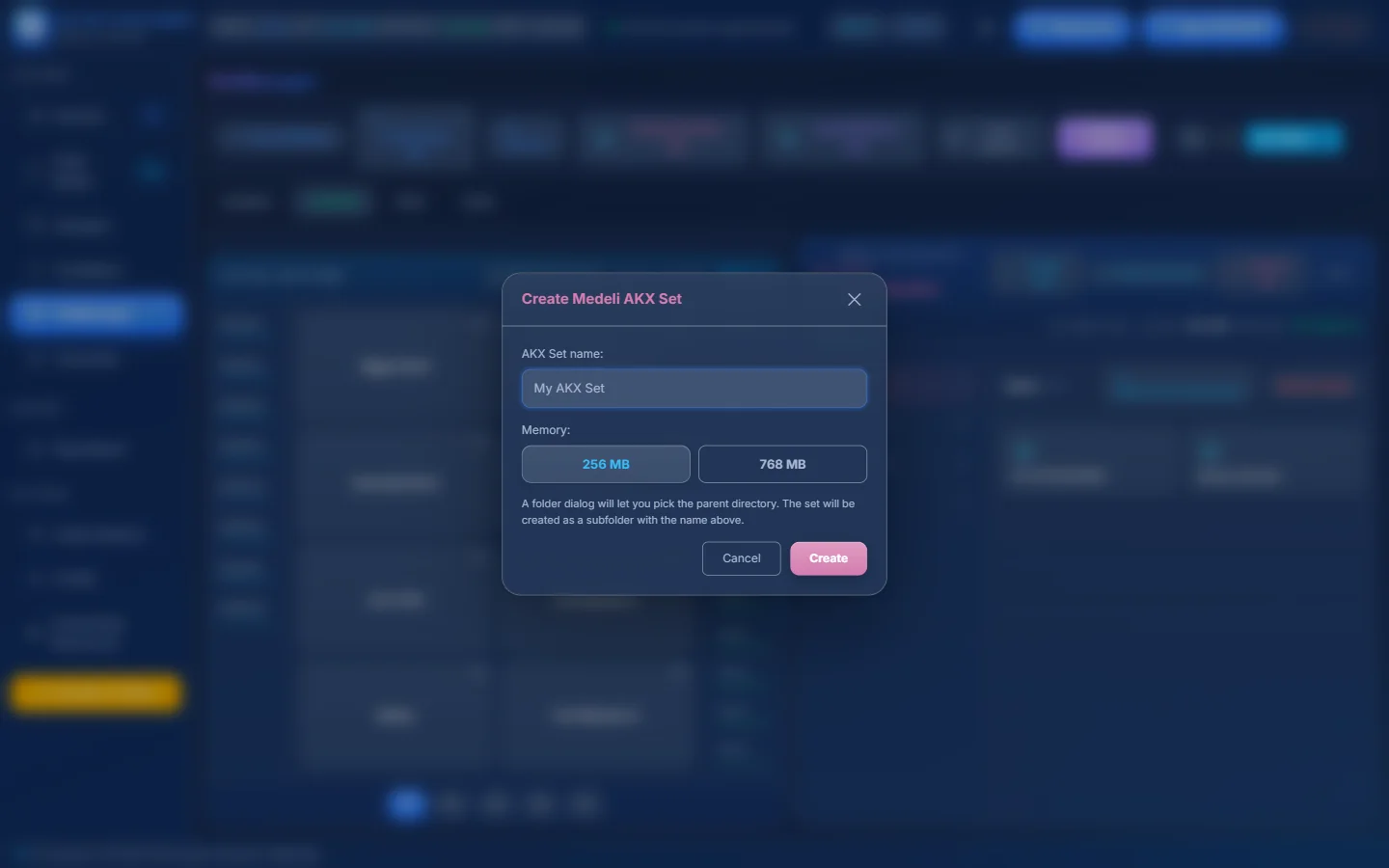
- 1AKX Set name.
- 2Memory: 256 MB or 768 MB.
- 3You choose the parent folder next; the set becomes a sub-folder.
- 4Create.
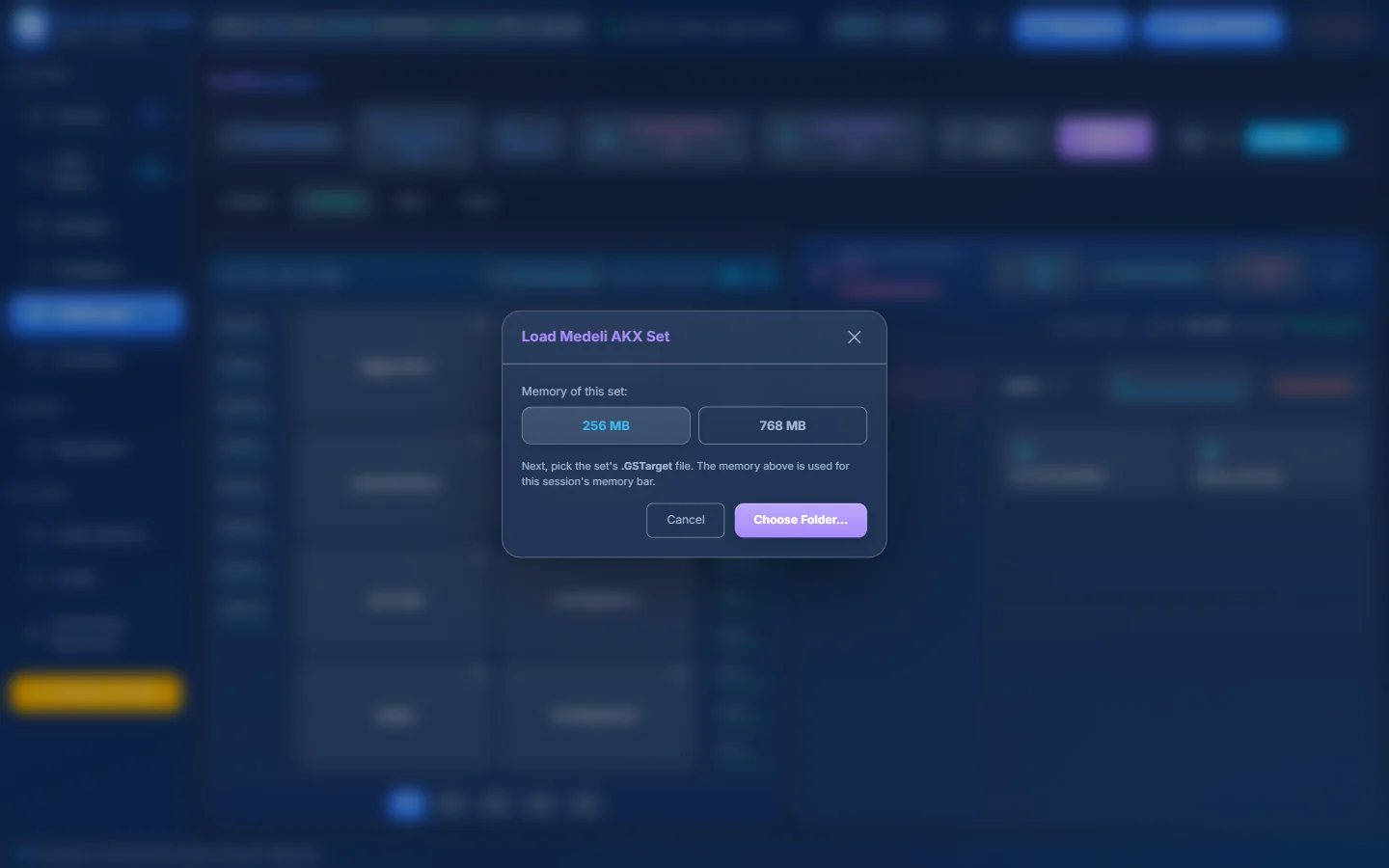
- 1Memory of this set (for the memory bar).
- 2Next you pick the set’s .GSTarget file.
- 3Continue.
The AKX panel#
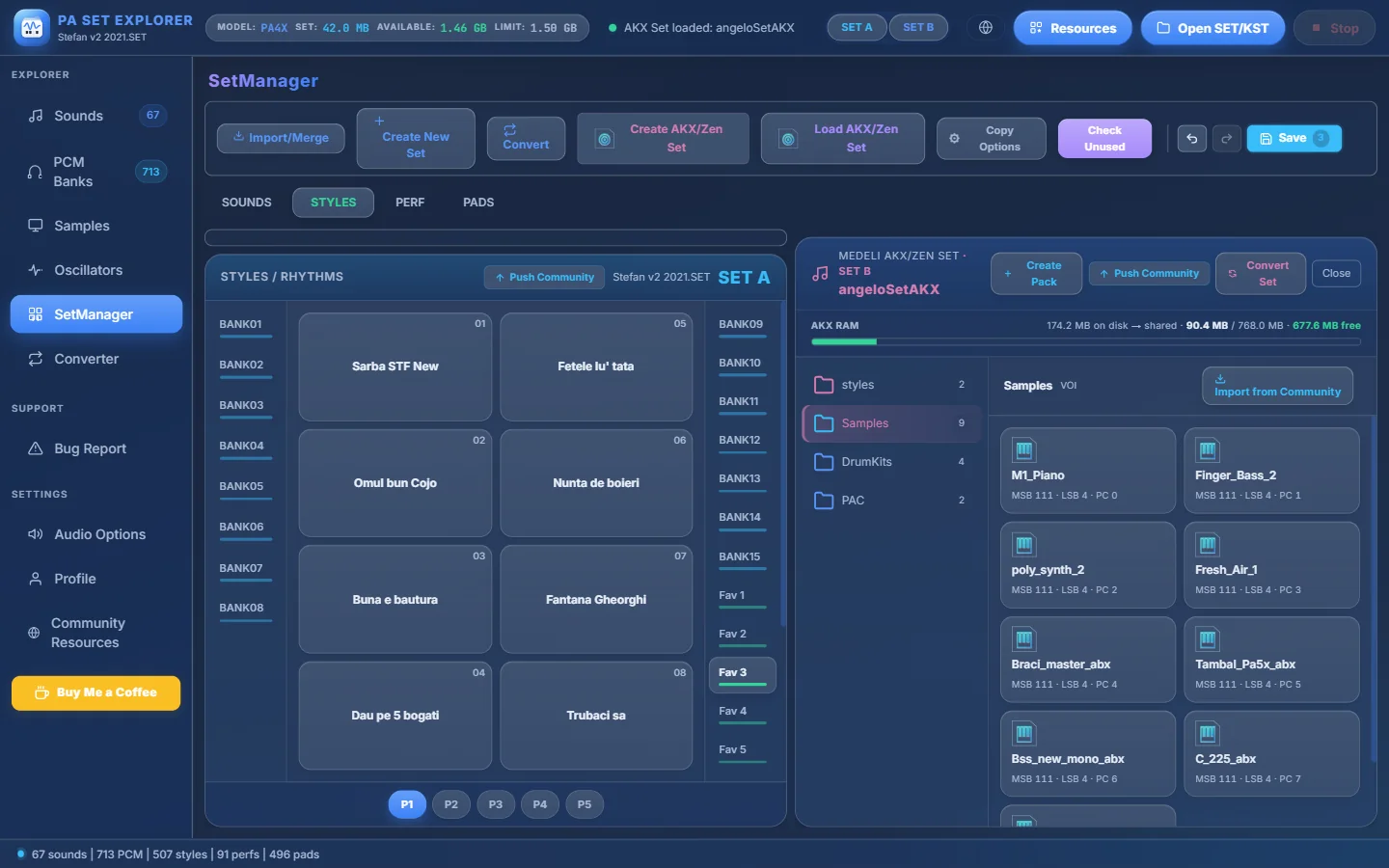
- 1MEDELI AKX/ZEN SET and the set name.
- 2Create Pack — a new Samples, DrumKits, Pads or Styles pack.
- 3Push Community — share items with the Community.
- 4Convert Set — convert the whole KORG SET into this AKX set.
- 5Close the AKX set.
- 6AKX RAM — how much of the expansion memory is used and how much is free.
- 7The packs of the set with how many items each has.
- 8The selected pack (Samples).
- 9An item: a Medeli voice (.voi)…
- 10…with the numbers to call it on the keyboard: MSB 111 (voices) / 110 (kits), LSB = the pack bank, PC = position.
- 11Import from Community — add one of your Community downloads.
Where the AKX panel appears depends on what is open: an AKX set alone uses the full width; with a KORG SET A it sits on the right as module B; two AKX sets show as AKX SET A and AKX SET B (the source — drag its items onto SET A or right-click → Copy to AKX SET A).
Packs: create, fill, rename, delete#
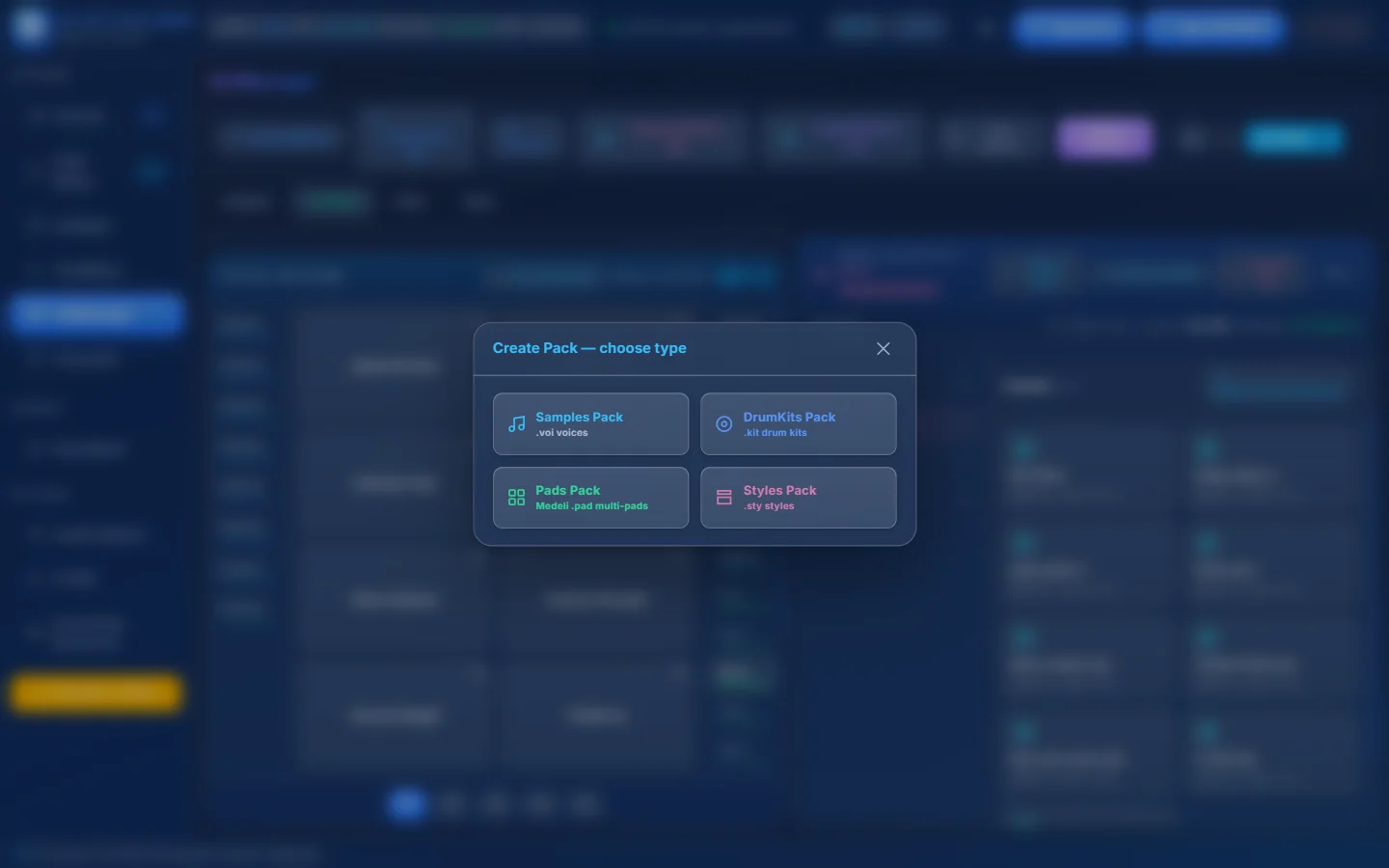
- 1Samples Pack — Medeli voices (.voi).
- 2DrumKits Pack — Medeli drum kits (.kit).
- 3Pads Pack — Medeli multi-pads (.pad).
- 4Styles Pack — Medeli styles (.sty).
| Right-click a pack | Does |
|---|---|
| Import Style… (Styles packs) | Imports any style format, converted to Medeli. |
| Add .voi / .uvn / .kmp files… (Samples packs) | Adds Medeli voices; Yamaha .uvn and KORG .kmp are converted. |
| Add .kit / .uvd files… (DrumKits packs) | Adds Medeli kits; Yamaha .uvd is converted. |
| Rename pack · Delete pack | Only for your own packs (built-in packs show a lock). Deleting removes the pack and everything in it. |
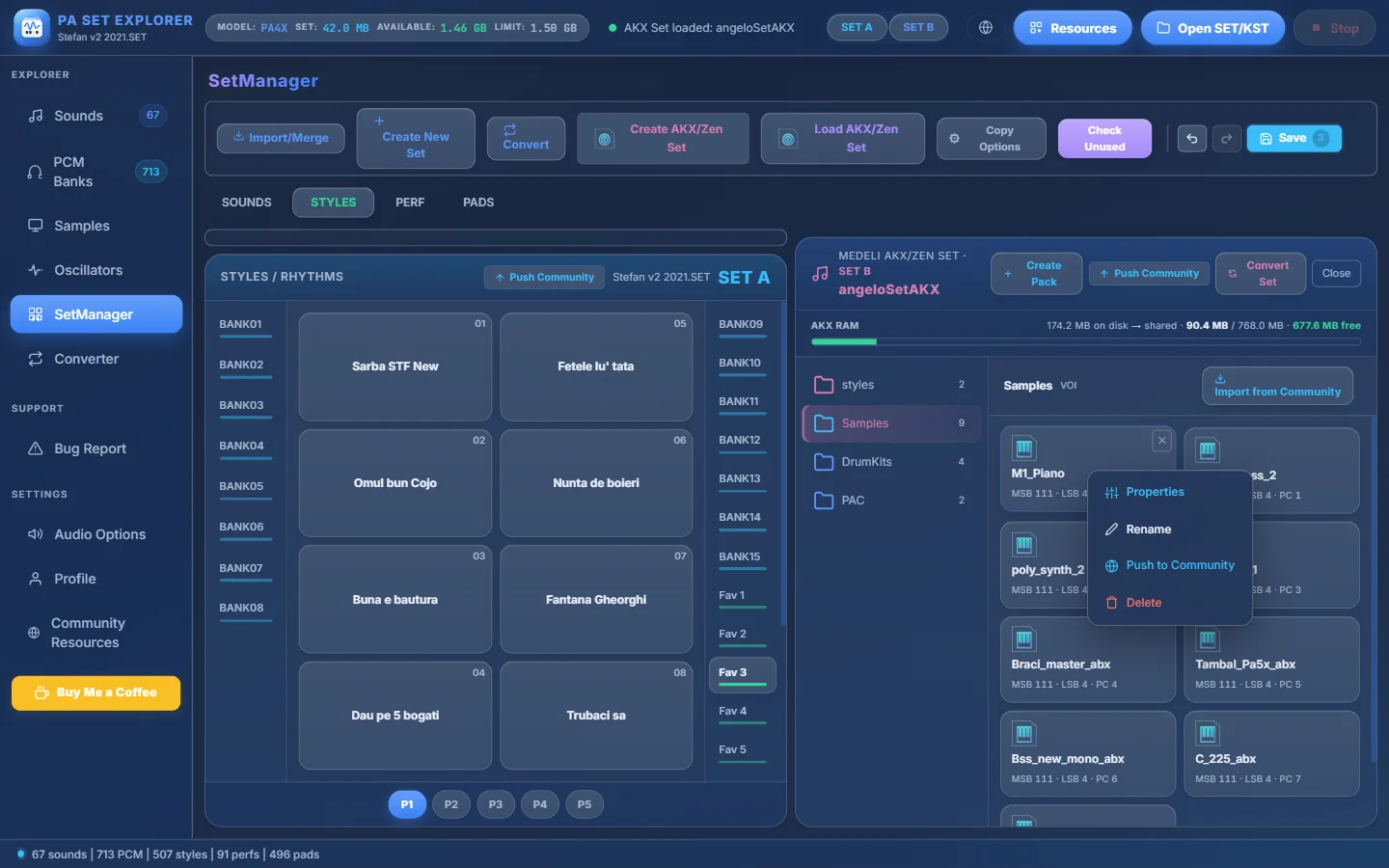
- 1A voice.
- 2Right-click an item: Properties, Rename, Push to Community, Delete (pads also have Edit).
Edit a voice or drum kit (Properties)#
Double-click a voice or drum kit (or right-click → Properties).
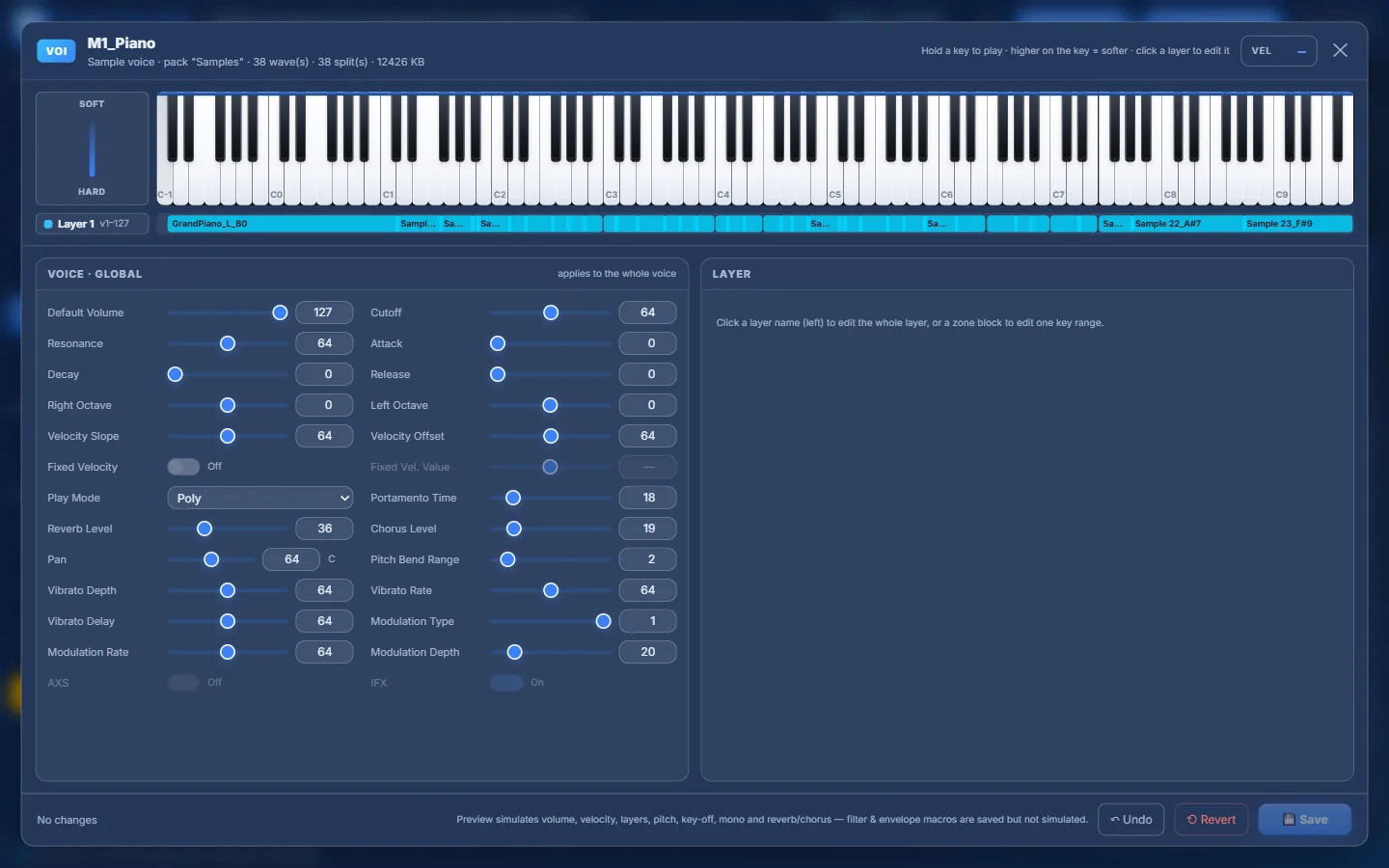
- 1The voice: name, pack, number of waves and splits, size.
- 2Hold a key to play · higher on the key = softer · click a layer to edit it.
- 3The velocity of the last note you played.
- 4Soft / hard velocity indicator.
- 5The keyboard — press and hold keys to hear the voice.
- 6The layer (velocity range). Click it to edit the whole layer.
- 7The zones of the layer — click a block to edit one key range.
- 8VOICE · GLOBAL — settings for the whole voice.
- 9Play Mode: Poly, Poly Portamento, Mono, Mono Portamento or Mono Legato.
- 10LAYER — the settings of the selected layer or zone.
- 11What the preview simulates (filter and envelope macros are saved but not simulated).
- 12↶ Undo (Ctrl+Z), ⟲ Revert and 💾 Save (Ctrl+S).
| VOICE · GLOBAL | LAYER / zone |
|---|---|
| Default Volume, Cutoff, Resonance, Attack, Decay, Release | Note Low / High, Velocity Low / High, Full Vel |
| Right Octave, Left Octave, Velocity Slope / Offset | Repeat, Key Off, Transpose, Fine tune, Detune (cents) |
| Fixed Velocity (+ value), Play Mode, Portamento Time | Main Vol, Pan L/R, Note On Delay |
| Reverb Level, Chorus Level, Pan, Pitch Bend Range | Reverb, Chorus, Shift −12 / −1 / +1 / +12 |
| Vibrato Depth / Rate / Delay, Modulation Type / Rate / Depth, AXS, IFX | Drum kits also: Exclusive Group, Repeat (pad) |
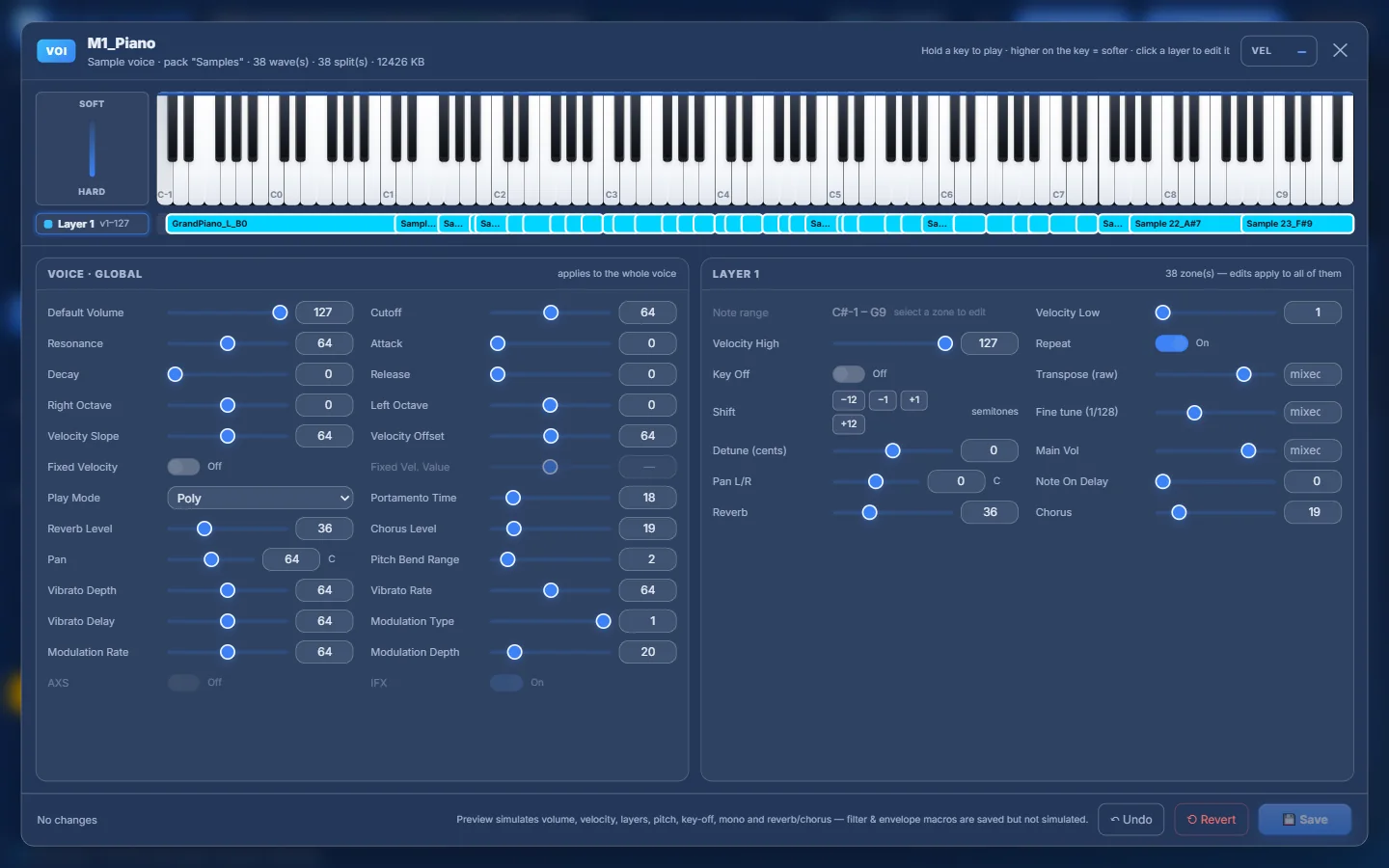
- 1Layer 1 selected.
- 2LAYER 1 — 38 zones; edits apply to all of them.
- 3Velocity range and Repeat.
- 4Shift the whole layer by −12 / −1 / +1 / +12 semitones.
- 5“mixed” = the zones have different values; type a value to set them all.
- 6Pan, Reverb and Chorus sends of the layer.
Edit an AKX style#
Double-click a style card. The Style Player opens with three steps: Sections, Tracks and Quick Settings. (The player itself is explained in Style Players.)
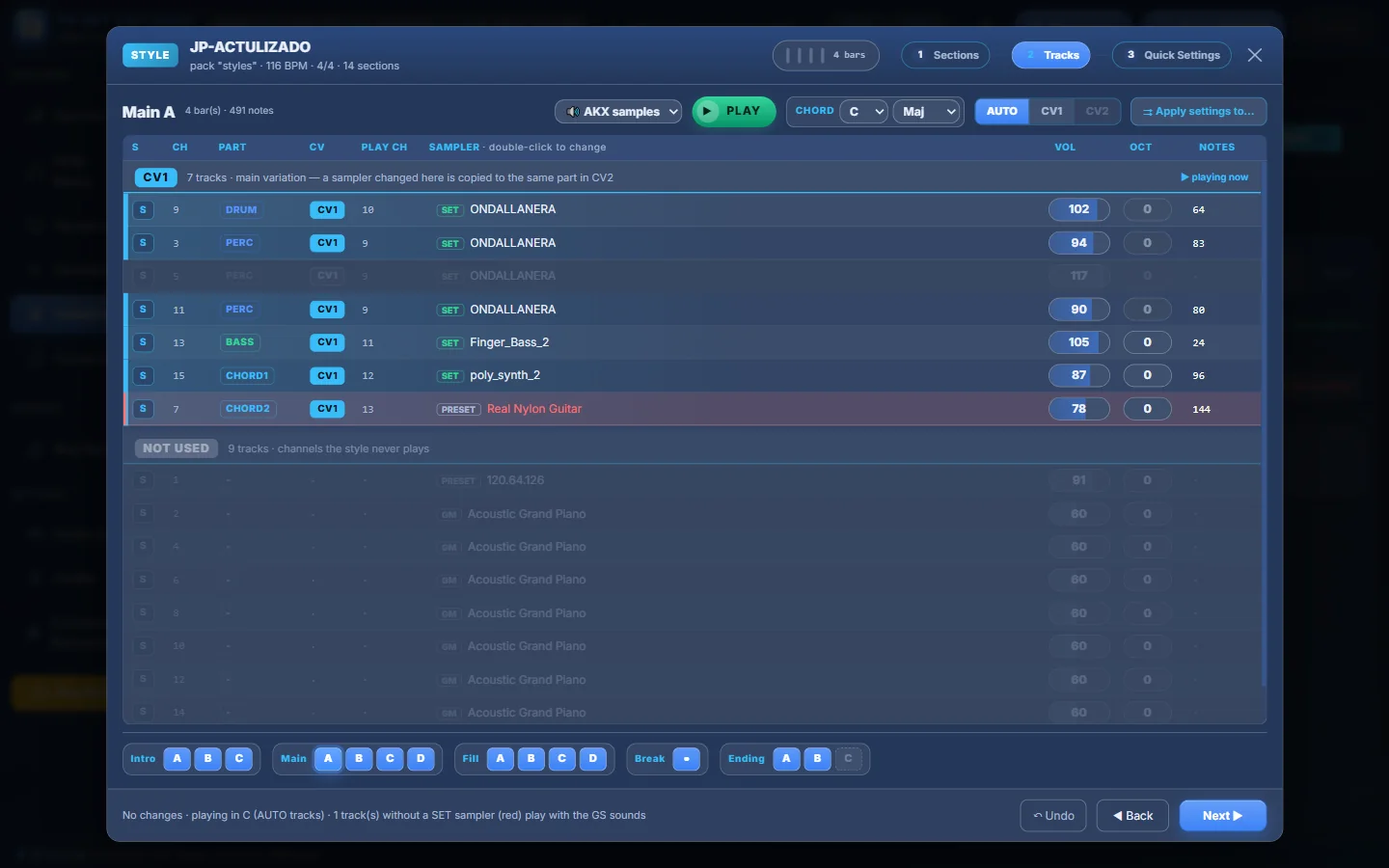
- 1AKX samples — hear the style with the samplers of the AKX set (or 🎹 PC MIDI).
- 2SET — this sampler is in the AKX set.
- 3A red row: the track uses a sampler that is not in the set (it plays with a GS sound here).
- 4PRESET — a Medeli built-in sound.
- 5NOT USED — channels the style never plays.
- 6The status line explains what you hear.
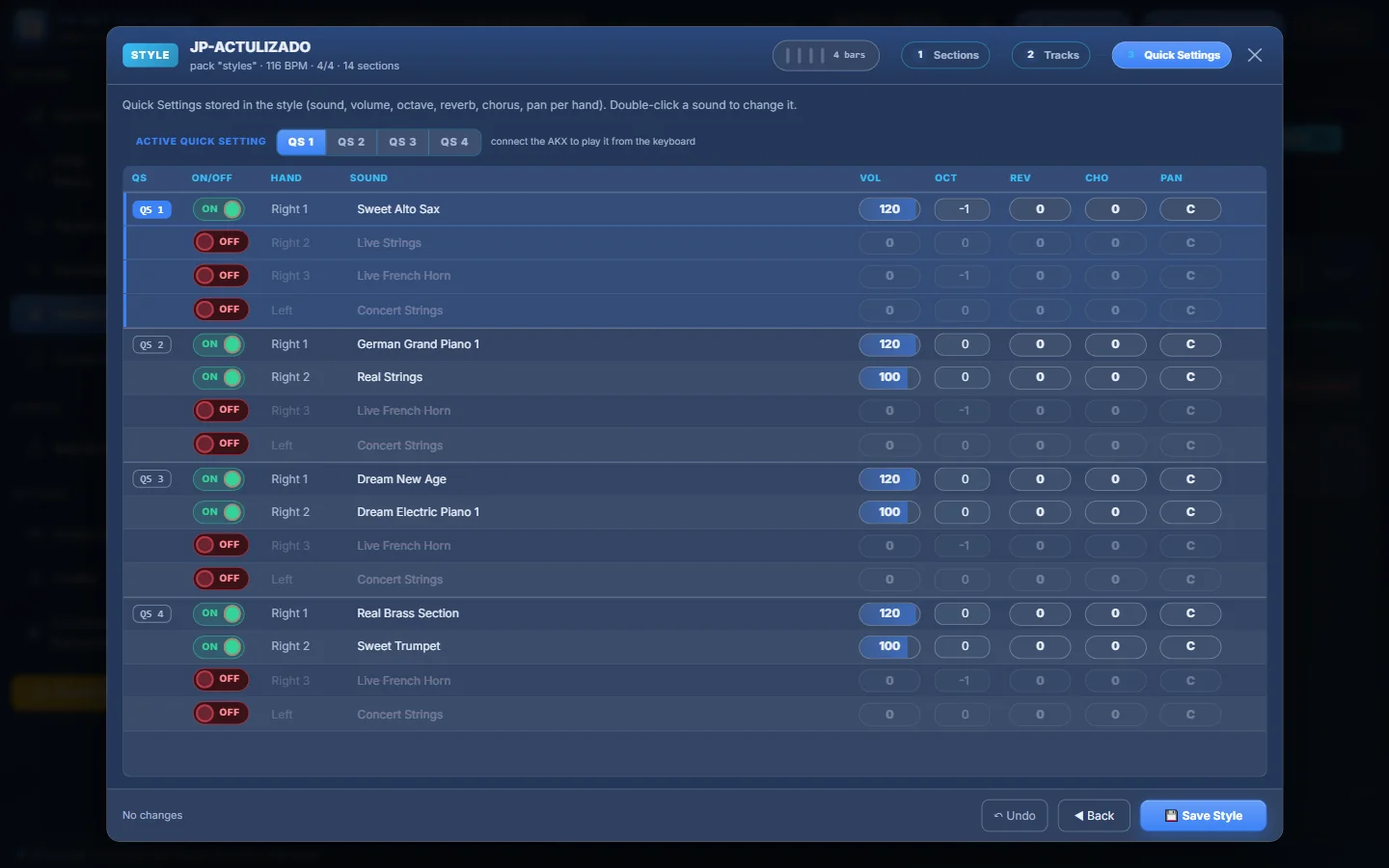
- 1Step 3: Quick Settings (Medeli styles only).
- 2ACTIVE QUICK SETTING — QS 1 to 4.
- 3Switch a part ON / OFF.
- 4HAND: Right 1, Right 2, Right 3, Left.
- 5SOUND — double-click to change.
- 6VOL, OCT, REV, CHO and PAN of each part.
- 7QS 2, 3 and 4 below.
- 8💾 Save Style — rebuild the style in the AKX set (a backup is kept).
KORG → AKX by drag & drop#
- 1Open both
Open your KORG SET (or KST) as SET A, then Import/Merge → Medeli AKX / Zen expansion (or create a new AKX set).
- 2Set your Copy Options
Save Styles Samples & DrumKits brings each style’s samplers and kits; Transcribe Guitar Mode, Relocate ACMP Percussion, Copy Styles Pads (Medeli AKX) and Save Styles STS also apply to AKX.
- 3Select the right pack and drag
Select a Styles pack and drag KORG styles into it; a Samples pack for samplers; a DrumKits pack for drum kits. Ctrl / Shift + click selects several items. Drag a whole bank button to convert the full bank into a new pack.
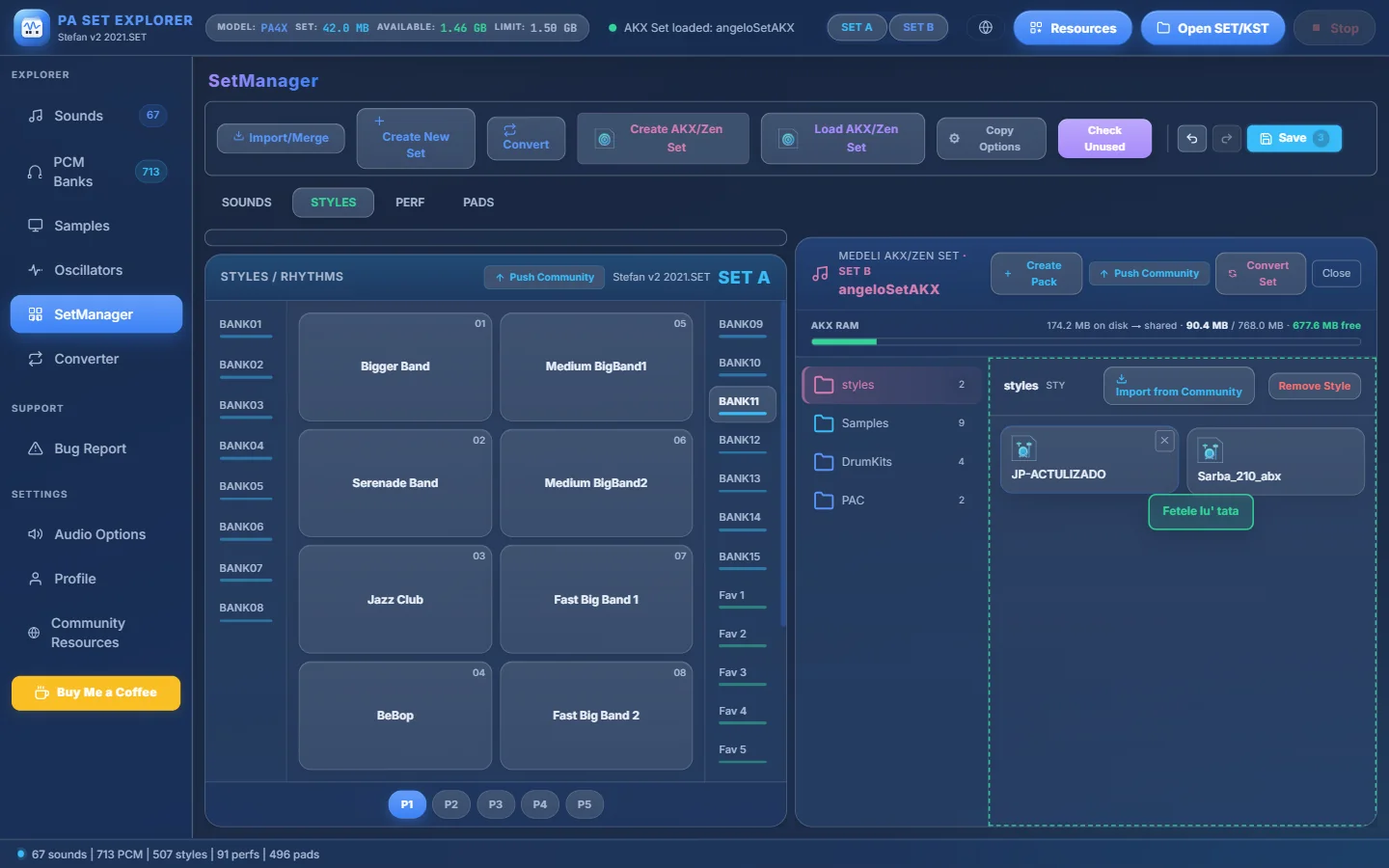
- 1A KORG style on its way…
- 2…to the Styles pack.
- 3Styles pack selected.
- 4Remove Style.
Convert a whole KORG SET into AKX#
Click Convert Set in the AKX panel (or SetManager → Convert → Medeli AKX / Zen). Choose what to convert:
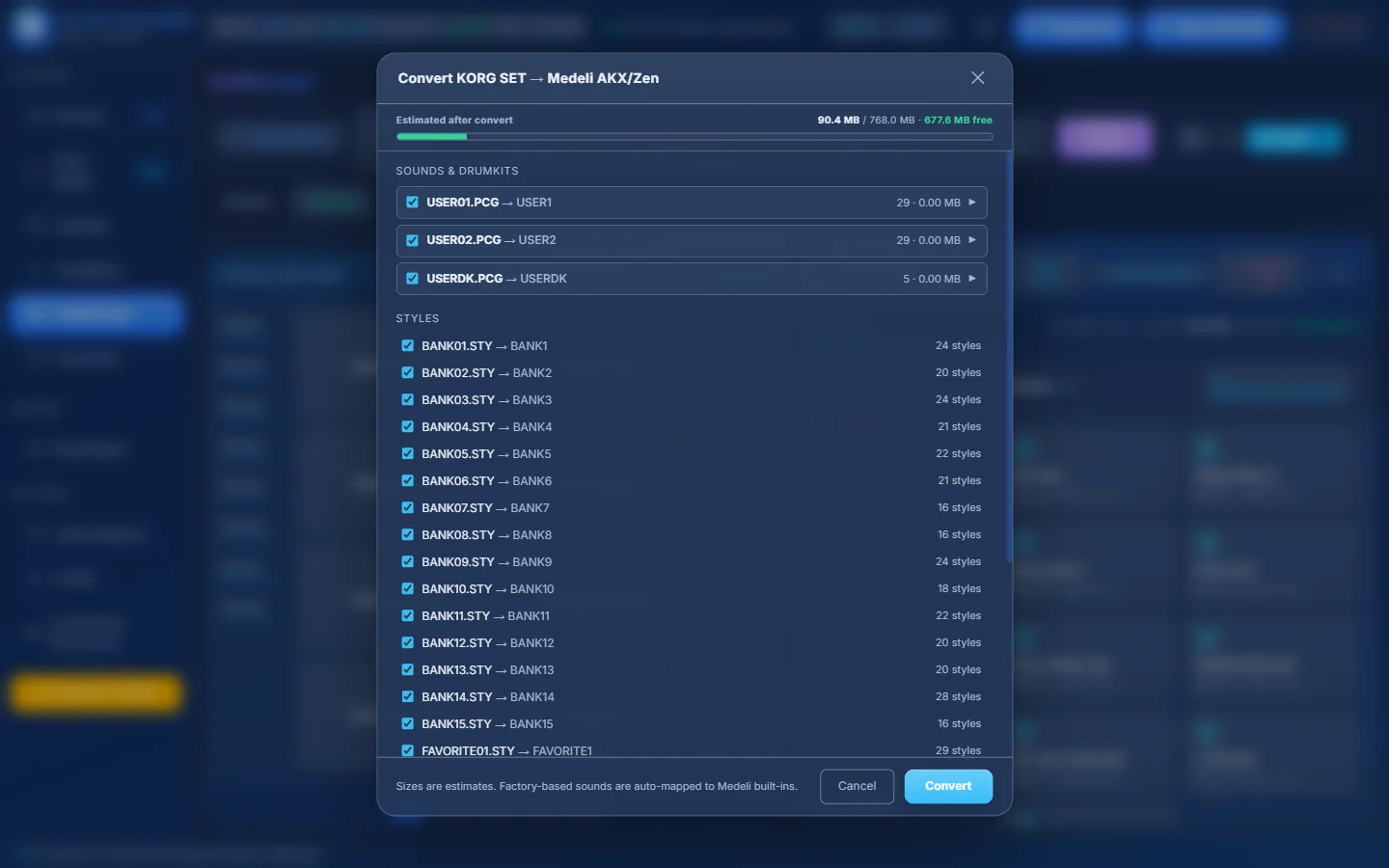
- 1Estimated after convert — the AKX memory you will use.
- 2Sounds & Drumkits — each KORG sound bank becomes a pack. Untick what you do not want.
- 3Expand a bank to tick single sounds.
- 4Styles — each style bank becomes a pack.
- 5Sizes are estimates. Sounds based on factory samples are mapped to Medeli built-in sounds.
- 6Convert (disabled when the selection does not fit).
At the end you see how many samples, drum kits and styles were converted, skipped or failed, the AKX memory used and the packs created. A manifest file <AKX set name>_convert_manifest.txt in the AKX set folder lists everything.
Convert an AKX set into a KORG SET#
With an AKX set open, SetManager → Convert asks what to convert:
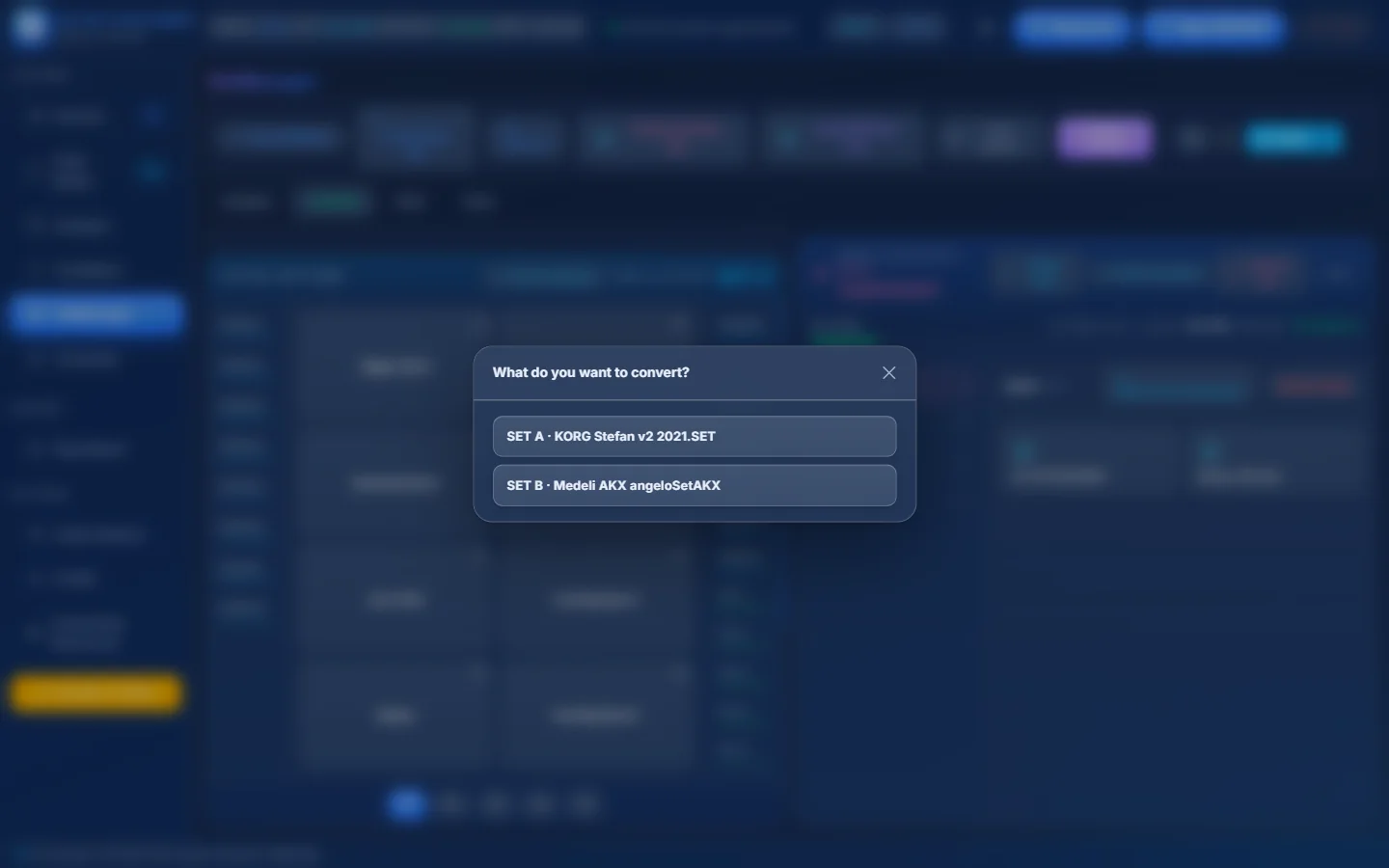
- 1Convert the KORG SET A…
- 2…or the Medeli AKX set into a KORG SET.
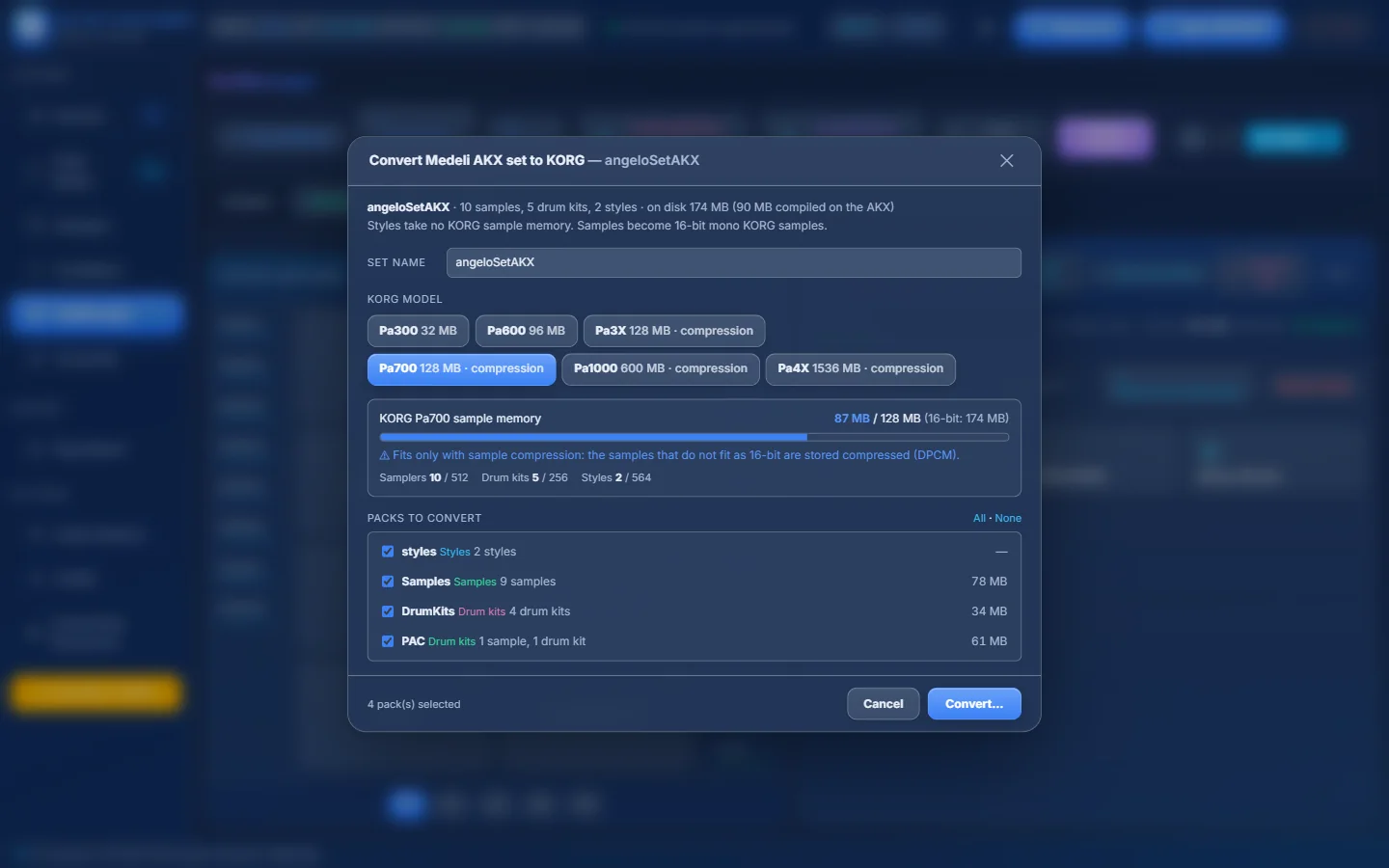
- 1What the AKX set contains. Styles take no sample memory; samples become 16-bit mono KORG samples.
- 2SET name of the new KORG SET.
- 3KORG model: Pa300, Pa600, Pa3X, Pa700, Pa1000 or Pa4X (with memory and compression).
- 4The sample memory of that model and how much the selection needs.
- 5Fits / fits only with compression (DPCM) / does not fit.
- 6Samplers, drum kits and styles against the model’s limits.
- 7Packs to convert — untick what you do not need.
- 8All · None.
- 9Convert… — the new SET is created and loaded in SetManager.
- Choose a model with compression (Pa3X, Pa700, Pa1000, Pa4X) when the memory bar says the selection only fits compressed.
- If SET A has unsaved changes you are asked to save first — the new KORG SET replaces SET A.